German
Russian
EXLADE - Disk encryption. Data encryption. Boot protection. Security and Encryption Solutions Development Company
    English
Home Products Download Purchase Support Articles Partners Press room Contacts  
Products
Cryptic Disk
Disk Password Protection
DefenseWall HIPS
Handy Backup
Related Links
About the program
Getting started
Creating
Deleting
Mounting
Unmounting
Automounting
Multi-user access
Program Launch Protection
Program Settings
Command line support
Newsletter subscription

Cryptic Disk - Creating encrypted disks and partitions


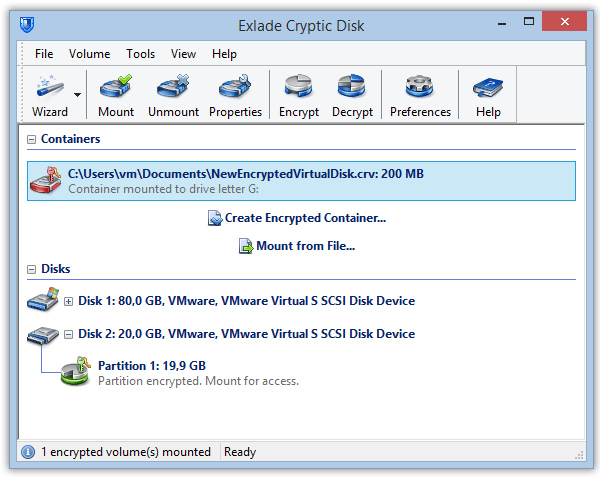
With Cryptic Disk, you can convert any regular non-system disk or partition into an encrypted one. To do this, you should select the disk/partition labeled as "NOT ENCRYPTED" and select the "Create an encrypted disk" item in the right or upper bar or in the menu.

There are 4 statuses for each disk/partition in the program:


All types of storage devices are supported: regular hard disks, USB External HDD, Flash Drive, Flash Card, etc.

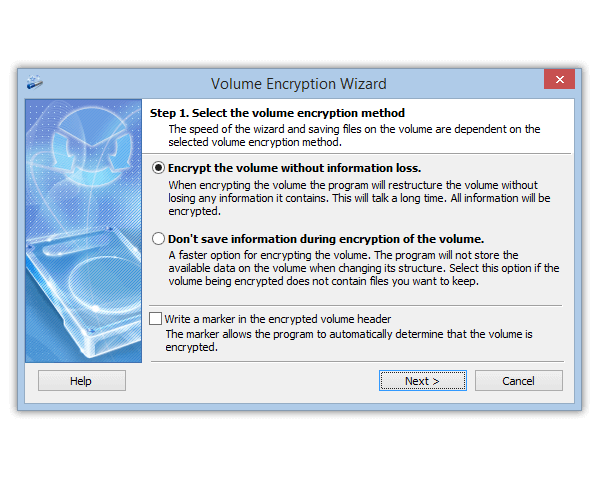
After you select the "Create a disk" item, the wizard window will appear on the screen. You can use it to enter the username and password for administration access to the encrypted disk/partition.
The maximum username and password length is 64 characters.


After you move to the next window, the disk/partition encryption key generation based on random numbers will be started. When you move the mouse, the generation rate increases and the key is filled with "genuinely random" numbers.
At the bottom of this window you can specify if you want to "erase" the disk/partition using random data. The "erasing" process takes a while and depends on the size of the disk/partition. On the other hand, it will be absolutely impossible to restore information and analyze the size of data stored on it. If you refuse to “erase” the disk, creating an encrypted disk will be finished quite soon (it will take no more than a few minutes).


After you click the "Start" button, the program will warn the user that the entire information stored on the selected disk/partition will be lost and then start the process of creating an encrypted disk. It should be mentioned that when you encrypt a whole disk that contains any partitions, all these partitions will be lost together with the information on them.

After the process is finished, the program will offer you the ability to format the created encrypted disk/partition. After that, the process of creating an encrypted disk can be considered successfully finished.
On the last page of the Wizard, you will be able to save the encryption key in a file that can be used in case the password is lost.


    Home  |  Products  |  Download  |  Purchase  |  Site map  |  Privacy Policy