|
To start the program in Windows, use either the program shortcuts created during the installation or the file CrypticDisk.exe located in the program folder.
The program starts its work from detecting disks in the system. The program displays a splash screen during this process.
If the launch of the program is password-protected , the search for disks will start only after the correct password is entered.
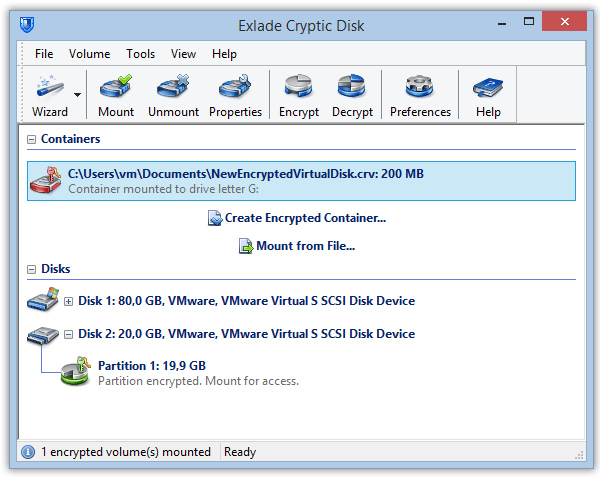
The main window of the program consists of two main parts:
• disk and partition panel;
• the bar for quick access to the features of the program (also known as "the right bar")
When the program is launched, an icon is created in the Status Area. When the icon is right-clicked, a pop-up menu will appear with access to the main program features. The program always works in the “shadow” mode. This is required for correct disconnection of removable encrypted disks. When you exit the program, all mounted encrypted disks will be automatically unmounted.
The program is quite straight-forward: you select the disk or partition you want and select what you want to do with it.
|
You can select it in the right bar of the program, on the upper bar of the program or in the menu.
|
The following types of operations with disks and partitions are implemented in the program: |
| |
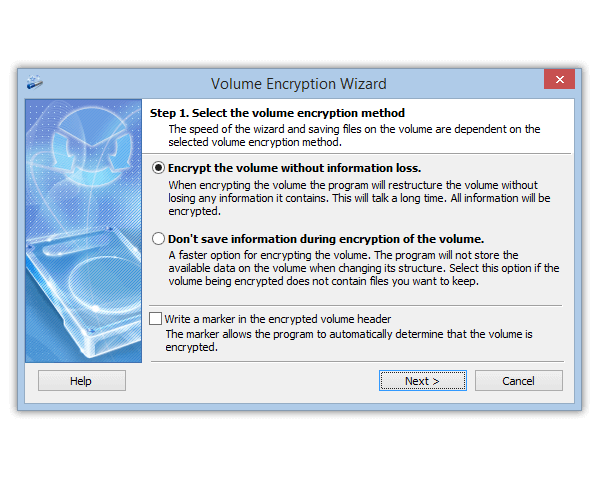
You can create an encrypted disk out of any non-system disk or partition. It is impossible to encrypt disks and partitions where the operating system is installed.
|
| |
You can convert an encrypted disk or partition back into a regular one. The entire information stored on it will be lost in this case. |
| |
After you mount an encrypted disk or partition, a new logical disk will appear on the system. It will be labeled with the letter you specify. After that, your work with the encrypted disk/partition will not differ from your work with regular logical disks.
|
| |
After you unmount an encrypted disk or partition, the corresponding logical disk will be automatically removed from the system.
|
| |
The administrator of an encrypted disk/partition (the user who created this disk/partition) can manage the list of users, specify passwords and access rights for them, add or delete them.
|
|
|
|