OneDrive and Google Drive encrypt your files, but they keep the keys. If you want documents in the cloud that only you can read, you have to encrypt them before they are uploaded.
This guide explains what the provider’s encryption really protects, what OneDrive and Google Drive offer on top of it, and how to encrypt files for any cloud service on a Windows PC.
What cloud encryption protects, and what it doesn’t
Major cloud services encrypt data in transit and, as a rule, at rest on their servers. The keys are managed by the provider. That is good protection against intercepted traffic and stolen data center disks. It does not help in these cases:
- Account takeover. A leaked or phished password, or a session left open on someone else’s computer, and the person who signs in sees all your files decrypted.
- Shared links. Whoever has the link has the file. Links get forwarded, saved in chats and forgotten.
- The provider itself and legal requests. Since the provider holds the keys, it can technically decrypt your files, for example to comply with a lawful request.
- The copy on your PC. The sync folder sits on your disk unencrypted unless the disk itself is encrypted.
For holiday photos this is usually fine. For scans of your passport, contracts, medical records, tax papers and client archives, it is safer to encrypt the files yourself.
What OneDrive and Google Drive offer
OneDrive Personal Vault
Personal Vault is a protected folder in OneDrive. It opens only after an extra identity check and locks again automatically after a period of inactivity. On free OneDrive plans the number of files in it is limited; with a Microsoft 365 subscription it is not. It is a useful extra lock, but it is not end-to-end encryption: Microsoft still holds the keys.
Google Drive
A personal Google Drive account has no password-protected folders. Google offers client-side encryption only in some Google Workspace editions for organizations, and an administrator has to set it up.
And Dropbox?
Dropbox has its own options: password-protected shared links, Dropbox Vault and end-to-end encryption for team folders on some business plans. They are covered, together with two ways to encrypt your Dropbox, in How to Encrypt a Dropbox Folder.
Client-side encryption: a Cryptic Disk container in your sync folder
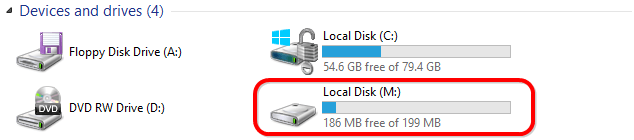
The most universal approach is to keep sensitive files in an encrypted container stored inside the sync folder. The container is a single file. Cryptic Disk mounts it as a regular drive in File Explorer after you enter the password: files are encrypted when written and decrypted when read. The cloud only ever receives the encrypted file, which looks like random data without the password. By default it carries no markers, so nobody can even prove it is a Cryptic Disk container. See the Cryptic Disk features for details.
It works with any service whose app syncs a folder on your PC: OneDrive, Google Drive, iCloud for Windows, Dropbox and others.
How to set it up
- Download Cryptic Disk and install it on every Windows PC where you need the files. A portable copy works too.
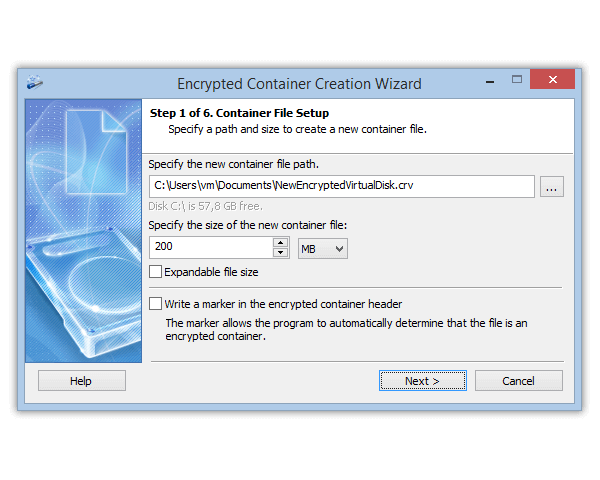
- Start the wizard for a new encrypted container and set a path inside your cloud folder, for example
C:\Users\Name\OneDrive\Documents\Private.dat. - Choose a size that fits your files with some reserve, but no more than you need (see below).
- Set a long password. A passphrase of several random words works well, see How long should a password be.
- Save the encryption key backup (header) that the wizard offers and keep it outside the cloud, for example on a USB stick at home. The backup is protected by the password that was valid when you saved it: it helps if the header gets damaged or if you change the password later and forget the new one, but not if you forget the only password.
- Mount the container, move your sensitive files into it and delete the unencrypted copies from the cloud folder. Empty the cloud’s recycle bin on the website as well, or the copies will stay there.
- When you are done, unmount the container. The cloud app then uploads the changed file.
The wizard is shown step by step in How to Create an Encrypted Container.
Rules for a container in the cloud
- Keep the container on the PC. OneDrive and Google Drive can show files that actually live only in the cloud. In OneDrive, right-click the container and choose “Always keep on this device”. In Google Drive for desktop, switch My Drive to mirroring, so files are stored on your computer too, or make the container available offline.
- One computer at a time. If two PCs change the same container, the service can’t merge the changes and keeps a conflicting copy.
- Unmount before you switch PCs. Unmount the container, wait until syncing has finished, and only then open it on another computer.
- Don’t make it huge. For the cloud it is one big file. Depending on the service, a change can mean uploading a large part of it or the whole file again. Several containers by project are easier to live with than one giant one.
- No phone or browser access. Cryptic Disk works only on Windows. Don’t put files you need on your phone into the container.
- Never mount it to a folder inside the cloud folder. Cryptic Disk can mount a container to an empty folder instead of a drive letter. If that folder is inside the sync folder, the cloud will upload the decrypted files.
The cloud’s version history still works, but for the whole container: if something goes wrong, you can restore the entire container to an earlier version.
Other options, honestly
- A password-protected archive is handy for one-off sharing. Pack the files into a 7-Zip archive with AES-256 encryption (with the 7z format you can encrypt file names too), upload it and share the link, and send the password through a different channel. For everyday work it is clumsy: you unpack and repack every time, and a decrypted copy easily stays behind in Downloads. Avoid the old ZIP encryption (ZipCrypto), which is weak, and choose AES-256.
- OneDrive Personal Vault adds a check when you open it and suits you if you need phone access and don’t worry about the provider itself.
- BitLocker or Windows Device encryption protects the copy on your PC while it is off, but not the files on the provider’s servers.
Tips
- Turn on two-factor authentication for your cloud account: it protects the files you don’t encrypt as well.
- Don’t keep the container password in the same cloud. Use a password manager for web accounts, and make the container password a long passphrase that is easy to type.
- Review your shared links from time to time and remove the ones you no longer need.
- Remember that sync is not a backup: if the container is damaged or deleted, syncing spreads that to every PC. Keep a separate copy of important files.
FAQ
Does OneDrive or Google Drive encrypt my files?
Yes, in transit and on their servers. But the provider holds the keys, so your files are readable by anyone who signs in to your account, and by the provider itself.
Can I password-protect a folder in Google Drive?
Not in a personal account. To get a folder that opens only with your password, keep the files in an encrypted container inside your Google Drive folder.
Is OneDrive Personal Vault end-to-end encrypted?
No. It asks for an extra check when you open it, but Microsoft keeps the encryption keys.
Can I open the encrypted files on my phone?
No. A Cryptic Disk container opens only on a Windows PC running the program, installed or portable. In the cloud and in the mobile app you will see just one container file.
What happens if my cloud account is hacked?
The attacker sees your ordinary files, but the container is just encrypted data to them and can’t be read without the password. Change your account password right away and turn on two-factor authentication.