
You can’t put a password on an ordinary folder in Dropbox. Dropbox does encrypt your files on its servers, but it keeps the keys, so anyone who gets into your account sees everything.
If you want a Dropbox folder that only you can open, encrypt the files on your computer before Dropbox uploads them. This guide shows two ways to do it on Windows with Cryptic Disk and explains what each one protects.
Can you password-protect a folder in Dropbox?
Short answer: not an ordinary folder. Here is what Dropbox itself offers:
- Encryption on Dropbox servers. Files are encrypted in transit and at rest. Dropbox manages the keys, so this protects against someone stealing disks from a data center, but not against a person who signs in to your account, and not against Dropbox itself or a legal request addressed to it.
- Password-protected shared links (some paid plans). The password protects a link you send to someone, not the folder in your account.
- Dropbox Vault (some paid plans). A special folder that needs a PIN to open in the Dropbox apps and on the website. It adds a lock on access; it is not end-to-end encryption.
- End-to-end encryption exists only for team folders on some business plans.
So for personal and most business accounts there is one reliable way to make files unreadable for everyone except you: client-side encryption. The files are encrypted on your PC, and Dropbox only ever stores encrypted data.
Method 1: an encrypted container inside your Dropbox folder
An encrypted container is a single file that Cryptic Disk mounts as a virtual drive after you enter the password. Everything you copy to that drive is encrypted on the fly. When you put the container file in your Dropbox folder, Dropbox syncs one file that looks like random data. Without the password, neither Dropbox nor anyone who gets into your account can read what is inside.
Step by step
- Download Cryptic Disk and install it on every Windows PC where you need the files. The installer can also extract a portable copy to a folder or USB stick.
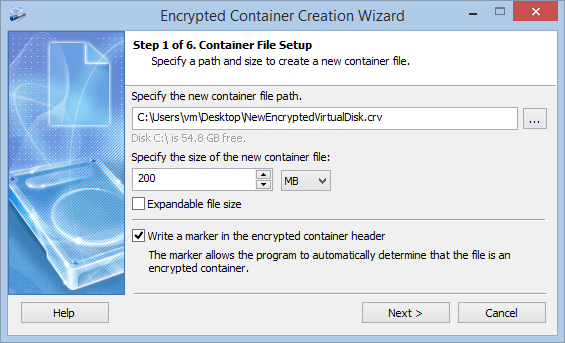
- In the main window, click “Create an encrypted container”. On the first page of the wizard, set the file path inside your Dropbox folder, for example
C:\Users\Name\Dropbox\Private.dat, and choose a size that fits the files you plan to keep, with some reserve. - Keep the default encryption settings unless you have a reason to change them, and set a long password. A passphrase of several random words is easy to type and hard to guess.
- At the end, let the wizard save a backup copy of the header (the encryption key). Keep it outside Dropbox, for example on a USB stick at home. The backup stays protected by the password that was valid when you saved it. It helps if the container header gets damaged, or if you change the password later and forget the new one, so remember (or store safely) that password too.
- Mount the container: enter the password and pick a free drive letter. Work with the files on that drive as usual.
- When you are done, unmount the container from the main window or the tray icon. Dropbox then uploads the changed container file.
The full wizard with screenshots is described in How to Create an Encrypted Container.
Practical notes
- One computer at a time. Open (mount) the container on one PC only. If two computers change the same container, Dropbox can’t merge the changes and keeps a conflicted copy instead.
- Unmount before you switch PCs. Unmount the container, wait until Dropbox shows that everything is up to date, and only then mount it on another computer.
- Keep it reasonably small. Dropbox sees the container as one big file. A huge container takes long to upload at first and is more painful to sync. A separate container for each project or topic is perfectly fine.
- Keep the container on the PC. If you use online-only files in Dropbox, make sure the container is available offline, so it is a normal file on your disk.
- No access from phones or dropbox.com. Cryptic Disk works only on Windows, so files inside the container can’t be opened in the Dropbox mobile app or on the website. Keep there only what you need on your Windows PCs.
- Never mount it to a folder inside Dropbox. Cryptic Disk can mount a container to an empty folder instead of a drive letter. That folder must be outside Dropbox, otherwise Dropbox would upload the decrypted files.
Dropbox’s version history still works: it applies to the container as a whole, so you can roll the entire container back to an earlier version if something goes wrong.
Method 2: move the whole Dropbox folder to an encrypted drive
This is the original method from this guide. You create an encrypted container or encrypt a separate drive, and then tell Dropbox to keep its folder there.
It is important to understand what this protects. The local copy of your Dropbox files is encrypted, so a stolen laptop or another user of this PC can’t read them while the drive is unmounted. Dropbox still uploads ordinary, unencrypted files, so on Dropbox servers they are protected only by Dropbox’s own encryption. Use this method when you mainly worry about the computer and still want to open your files on the phone or on the web.
If you don’t have an encrypted drive yet, create one first:
How to Create an Encrypted Container
How to Encrypt a Volume
Make the encrypted drive large enough for everything that Dropbox syncs to this computer, with a reserve, and format it with NTFS. Before you start, check that Dropbox has finished syncing.
The Dropbox screenshots below come from an older version of the app. In newer versions the folder location setting has moved: look for it in the Dropbox preferences, in the section about syncing. The idea stays the same.
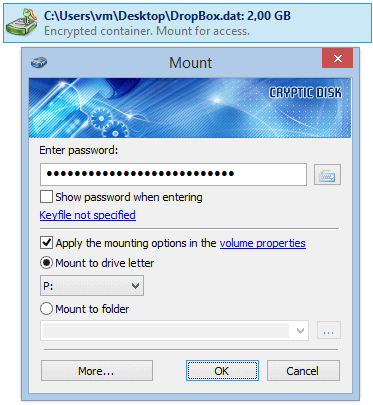
1. Mount the encrypted container. In the Cryptic Disk main window, right-click the container, choose “Mount Container…”, enter the password and select a free drive letter.
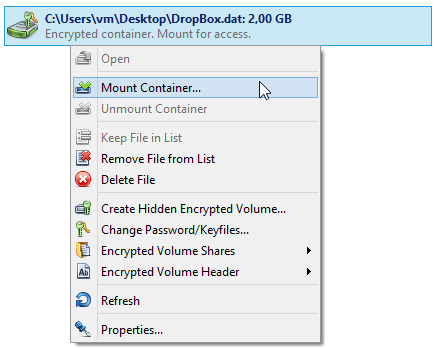
Remember the letter: Dropbox will look for its folder on this drive. In this example it is “P:”.
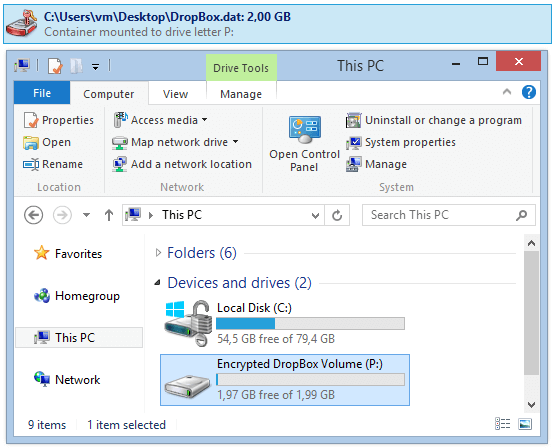
After mounting, Windows shows the encrypted virtual drive “P:”.
2. Move the Dropbox folder to drive P:. Click the Dropbox icon in the system tray, click the gear icon and choose “Preferences…”.
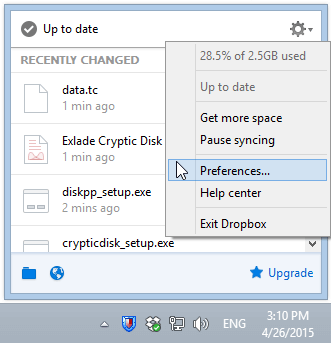
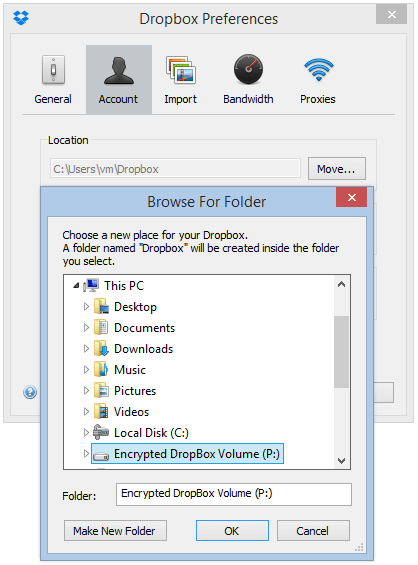
Find the location of the Dropbox folder and click “Move…”. Select the encrypted drive “P:” and click “OK”. Dropbox creates a folder named Dropbox inside the location you select.
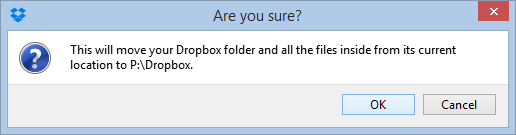
Confirm the move.
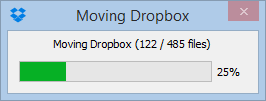
Dropbox moves all files to the encrypted drive. The time depends on how much data you have.
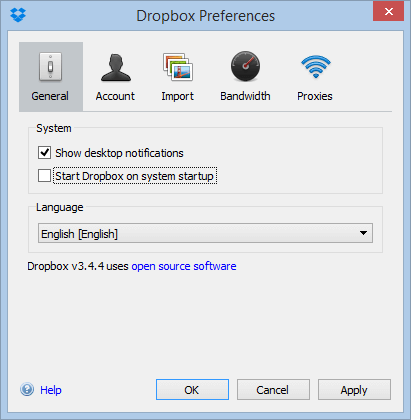
3. Turn off Dropbox autostart. Dropbox must not start before the encrypted drive is mounted. In the Dropbox preferences, clear “Start Dropbox on system startup” and click “OK”. In the next steps Cryptic Disk will start Dropbox right after mounting.
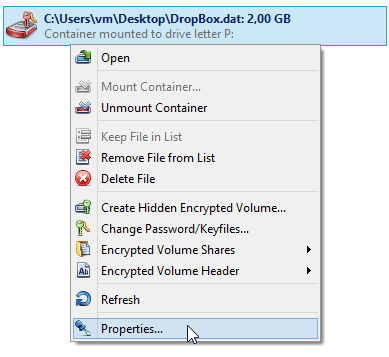
4. Open the properties of the encrypted drive. In the Cryptic Disk main window, right-click the mounted container and choose “Properties…”. Enter the same password you use for mounting.
5. Always mount to the same letter. On the “Basic” tab, enable “Save mount settings for this volume” and select the letter “P:”. Cryptic Disk will now always mount this container to P:.
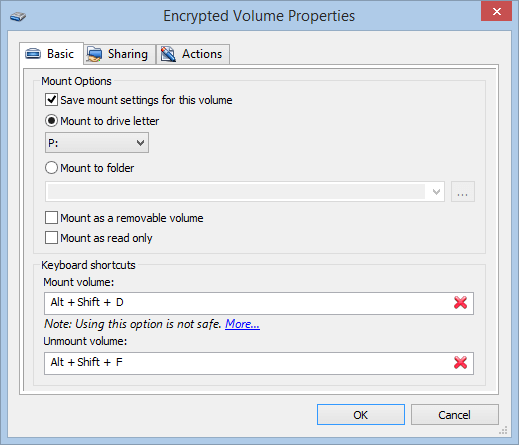
On the same tab you can set hot keys for mounting and unmounting this container.
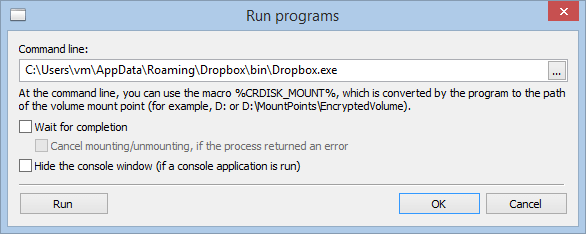
6. Start Dropbox automatically after mounting. Open the “Actions” tab, select the “After mounting” subtab, click “Add” and choose “Run program…”.
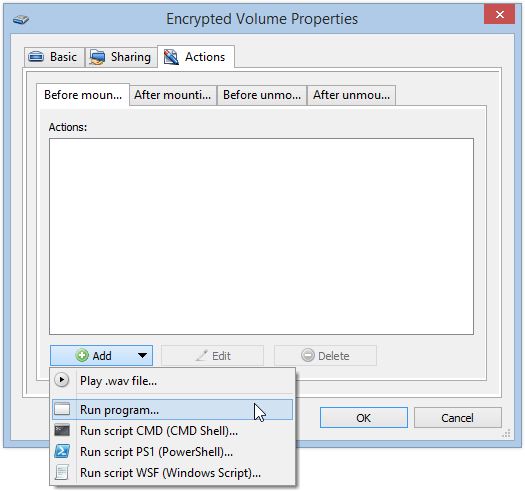
Enter the path to Dropbox.exe. It depends on the Dropbox version: in the screenshot it is in the user’s AppData folder, newer versions are usually installed under Program Files. The easiest way to find the exact path is to check the target of the Dropbox shortcut. To test the action, exit Dropbox, click “Run” and make sure Dropbox starts. Then click “OK” in this window and in the properties window.
How it works day to day
After a restart, Dropbox doesn’t run and the encrypted drive is closed. Mount the drive with your password, and Dropbox starts automatically and syncs as usual. To close access, exit Dropbox from its tray menu and unmount the drive. If Dropbox ever starts before the drive is mounted, it won’t find its folder: exit it, mount the drive and start Dropbox again.
Which method to choose
- You don’t want Dropbox, or anyone who gets into your account, to read the files: Method 1. Only encrypted data leaves your PC.
- You want to protect the local copy on a laptop but keep access from your phone and the web: Method 2. If your system drive is already encrypted with BitLocker or Windows Device encryption, the local copy is protected while the PC is off, and Method 2 adds a separate password for the Dropbox files.
- Both: keep everyday files in Dropbox as usual and put the sensitive ones in an encrypted container (Method 1).
For OneDrive, Google Drive and other cloud services the same approach works, see How to encrypt files before uploading them to the cloud.
FAQ
Can you password-protect a folder in Dropbox?
No, Dropbox has no setting that puts a password on an ordinary folder. Some paid plans offer password-protected shared links and Dropbox Vault with a PIN. To get a folder that opens only with your password, keep an encrypted container in Dropbox (Method 1).
Does Dropbox encrypt files?
Yes. Files are encrypted in transit and on Dropbox servers, but Dropbox holds the keys. This does not protect your files from someone who signs in to your account.
Is Dropbox end-to-end encrypted?
Not by default. End-to-end encryption is available only for team folders on some business plans. On other accounts you get comparable protection by encrypting files yourself before they are uploaded.
What happens if I forget the container password?
Dropbox can’t help, because it stores only the encrypted file. A header backup from Cryptic Disk helps only if you remember the password that was valid when you saved it, for example after you changed the password and forgot the new one. If you forget the only password, the data can’t be recovered: there is no back door.
Can I open the encrypted files on my phone?
No. Cryptic Disk is a Windows program, and files inside the container can be opened only on a Windows PC with Cryptic Disk installed or running in portable mode. With Method 2 the files in Dropbox stay unencrypted on the servers, so they remain available in the mobile app.