A USB flash drive is the easiest thing in your bag to lose. It stays in a colleague’s laptop, in the office printer or on a hotel desk. If it holds contracts, scanned IDs or a work database, whoever finds it only has to plug it in. A password fixes that, but only if real encryption stands behind it.
This guide compares the options in Windows and shows two ways to encrypt a USB drive with Cryptic Disk: the whole drive, or an encrypted container file on it.
Why Windows can’t simply “put a password” on a USB drive
File Explorer has no command that locks a drive with a password. The “Hidden” attribute is not protection: one Explorer setting shows those files on any PC. A Windows account password protects only signing in, not a stick plugged into another PC.
Only encryption gives real protection: the data is stored encrypted, and the password is needed to decrypt it. There are three ways to get there.
BitLocker To Go
The removable drive encryption built into Windows Pro, Enterprise and Education. Windows 10 and 11 Home can’t turn BitLocker To Go on, but they can unlock such a drive. Save the recovery key: without it, a forgotten password means lost data. A good fit if you run Windows Pro and use the drive only on Windows PCs.
Hardware-encrypted USB drives
A controller inside the drive encrypts the data, and you enter a PIN on a keypad on the case or in the vendor’s app. Keypad models unlock on the device itself, so they work regardless of the operating system. The downsides: a higher price, and you have to trust an implementation you can’t check.
Encryption software
A program creates an encrypted volume or an encrypted container file on the drive. It works on any Windows edition, Home included. The one condition: the program must run on the computer where you open the drive. Let’s go through this option with Cryptic Disk.
Method 1: encrypt the whole USB drive
Choose this if the drive holds only your data and you open it on Windows PCs. Nothing on it can stay unencrypted by accident.
- Get Cryptic Disk from the download page and install it.
- Copy everything from the USB drive to your computer. You need a backup anyway, and it lets you pick the faster method.
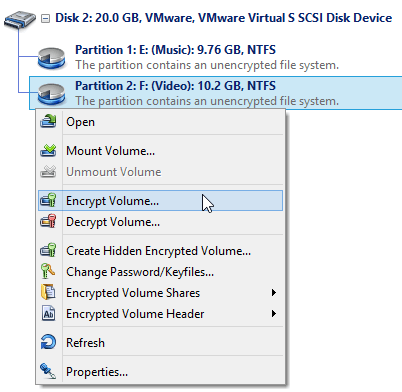
- In the main window, find the USB drive in the list, right-click its partition and choose “Encrypt Volume”.
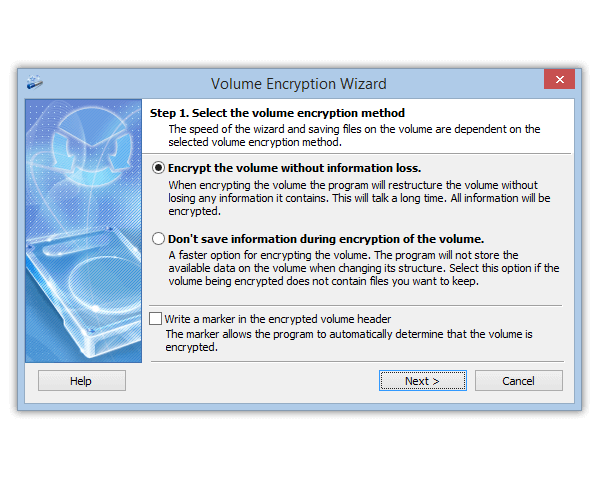
- The wizard offers two methods:
- “Don’t save information during encryption of the volume”: fast, but everything on the drive is erased. Choose it if your files are backed up.
- “Encrypt the volume without information loss”: your files stay in place, but it takes a long time, because every sector is processed, including empty ones. This method supports FAT32 and NTFS. Don’t unplug the drive while the wizard works.
- If you chose formatting, select a file system. exFAT suits a flash drive (Windows 7 and later): unlike FAT32, it stores files larger than 4 GB.
- Set a password and, optionally, key files. Check the settings and start.
- At the end, the wizard offers to save a backup of the header. Do it (see the tips below).
- Mount the drive: enter the password and pick a free drive letter. It appears in File Explorer like any other disk, and you can copy your files back.
You can leave “Write a marker in the encrypted volume header” turned off. Then nobody can prove without the password that the drive holds encrypted data: it looks like random bytes. The drive encryption page explains how this works, and the step-by-step guide to encrypting a drive shows every wizard page.
Windows doesn’t recognize a file system on an encrypted drive and may offer to format it. Say no: formatting destroys the encrypted data.
Method 2: an encrypted container on the USB drive
A container is a file that Cryptic Disk mounts, after you enter the password, as a separate drive in File Explorer. Everything written to it is encrypted on the fly and decrypted when read. The stick itself stays ordinary: a TV, a car stereo or a Mac can use its open part, while private files sit in the container. You can also keep a portable copy of Cryptic Disk next to the container.
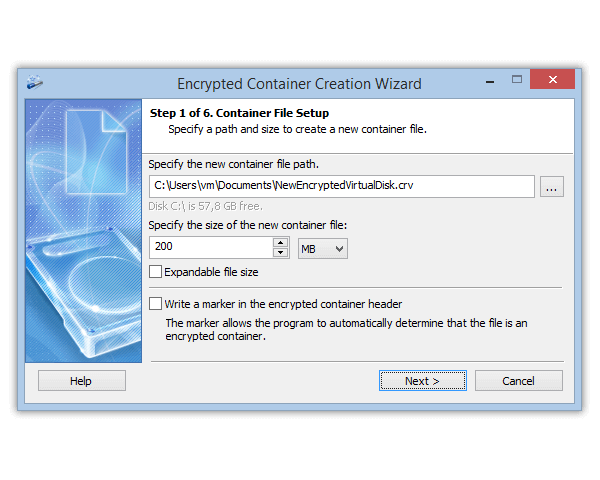
- Start the encrypted container wizard in Cryptic Disk.
- Choose a path for the new file on the USB drive and a size. “Expandable file size” lets the container grow as you add data instead of taking the space at once, but it works only on NTFS drives. If you use it, keep free space on the stick: when the container has no room to grow, its file system can get damaged.
- Pick a file system, set a password and let the wizard finish.
- Mount the container and use it like a normal drive.
Mind the FAT32 limit: a single file can’t exceed 4 GB, and that includes the container. For a larger one, back up the stick and reformat it to exFAT or NTFS.
A container is an ordinary file and can be deleted by accident, so keep a copy of important data elsewhere. Full walkthrough: how to create an encrypted container.
Which one to choose
- Whole drive: everything is protected, but the stick is useless on devices without Cryptic Disk.
- Container: part of the stick stays open for any device, and the program can travel on the same stick.
Using the encrypted drive on another computer
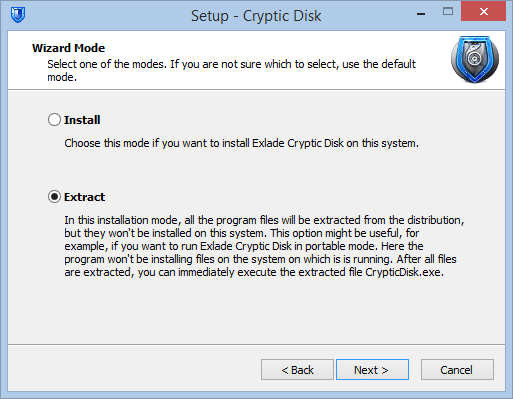
- Cryptic Disk has to run there, installed or in portable mode. The installer can just extract the program files to any folder or USB drive: choose “Extract” in the setup wizard. More about portable mode and other features.
- A fully encrypted drive can’t carry the program: its contents stay locked until you mount it. Keep the program on another drive or use the container method.
- Windows only. Cryptic Disk runs on Windows 11, 10, 8.1, 8, 7, Vista and XP. There are no versions for macOS, Linux, Android or iOS.
- Unmount before you unplug. If you pull the drive out, Cryptic Disk unmounts it automatically, but files being written at that moment can get damaged. Close the programs using the drive, unmount it from the main window, the tray icon menu or with a hot key, then unplug.
- Be careful with other people’s computers. Malware there can capture your password. The built-in virtual keyboard reduces the keylogger risk, but on a PC you don’t trust, don’t open sensitive data.
Tips to avoid losing your data
- Back up the encryption key. It is stored in the volume header, and if the header gets damaged, the data can’t be read without a copy. Cryptic Disk saves the header to a file and restores it (“Encrypted Volume Header” in the context menu). The copy is protected by the password that was valid when you saved it, so remember (or safely store) that password too. Keep the copy away from the USB drive.
- Use a long passphrase. You type an encryption password by hand, so several random words work well. If the password is your only protection, make it at least 15 characters. More on how long a password should be. Adding a key file means you need both the password and the file.
- Never keep the only copy of your data on a flash drive. Drives fail and get lost, and encryption doesn’t protect against that. Copy important files to another drive regularly, ideally an encrypted one.
FAQ
Can I password protect a USB drive without software?
Only with BitLocker To Go on Windows Pro, Enterprise or Education. Windows Home can’t encrypt a drive with built-in tools, only unlock one. Otherwise you need a hardware-encrypted drive or encryption software.
What happens if I forget the password?
There is no way around it. A key backup restores access only if you remember the password that was valid when you saved it, for example after changing the password and forgetting the new one. If you forget the only password, the data is lost for good, and all you can do is format the drive.
Will an encrypted USB drive work on a Mac?
No. Cryptic Disk runs only on Windows. If you need the drive on other devices too, use the container method: the open part works everywhere, and the container opens on a Windows PC.
Can I encrypt a USB drive without deleting the files on it?
Yes, the wizard can encrypt the volume without information loss (FAT32 and NTFS). It takes longer than encrypting with formatting, so back up your files first anyway.