The short answer: if a password is your only protection, make it at least 15 characters long. If sign-in also needs a code or a security key, 8 characters is the minimum, but longer is still better. For passwords you have to type from memory, a phrase of several random words is the easiest way to get there.
Below we look at where these numbers come from, why length beats complexity in a strong password, and where a password manager helps and where it can’t.
What NIST recommends
NIST, the US National Institute of Standards and Technology, updated its authentication guideline SP 800-63B in 2025. It is widely used as a reference well beyond the US. The key points for passwords:
- at least 15 characters when the password is the only factor;
- at least 8 characters when it is combined with another factor (an authenticator app code, a hardware key);
- length matters more than composition rules: forcing users to add uppercase letters, digits and symbols is not recommended;
- no forced password changes on a schedule.
These rules are written for services, but they work as a guide for personal passwords too. Change a password when there is a sign it has leaked, not every 90 days.
Why length beats complexity
The number of possible passwords is the alphabet size raised to the power of the length. Every extra character multiplies the count by the whole alphabet, while “complexity” only makes the alphabet a bit bigger. Compare random passwords:
- 8 characters from the full keyboard (upper and lower case letters, digits, symbols, about 94 characters): roughly 6 quadrillion combinations;
- 15 lowercase letters only: about 275,000 times more.
Take an 8-letter lowercase password. Switching it to the full keyboard gives about 29,000 times more combinations. Making it 15 lowercase letters long gives about 8 billion times more.
There is a second reason. All of this holds for random passwords, and people are not random. A rule like “one capital, one digit, one symbol” turns into Summer2026! or P@ssw0rd, and those patterns are among the first things a cracking tool tries.
Passphrases: long but memorable
A passphrase is a few random words, such as bucket-comet-sundae-draft-alder. It is long, yet far easier to remember than T7#qL!x9.
To make it strong:
- let chance pick the words, not you: dice with a word list, or the generator in your password manager. Song lyrics, quotes and “ilovemydog” don’t count;
- use 4 words for a password backed by a second factor and 5-6 words for one that stands alone, such as an encryption password;
- for scale: the classic Diceware list has 7,776 words, and 5 random words from it give about 4,700 times more combinations than 8 random keyboard characters;
- separators and a capital letter don’t hurt, but length and randomness do the real work.
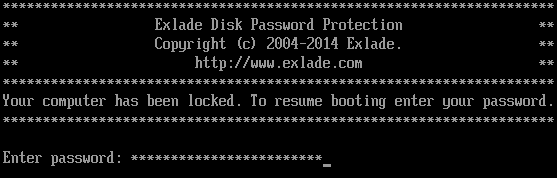
For a boot password, stick to plain Latin letters, digits and common symbols: before the operating system loads you can’t switch keyboard layouts, so keep a Disk Password Protection boot password to characters you can type on a standard US layout.
Where a password manager fits, and where it doesn’t
For websites and online services, a password manager is the best tool. It generates random passwords of any length you need, remembers them and fills them in. You only remember one master password: make it a long passphrase and turn on a second factor for the manager.
Some passwords, though, are typed before any password manager is running:
- a boot password. Boot protection in Disk Password Protection asks for it before Windows starts;
- the password for an encrypted drive or container, especially if your password vault lives on that drive or you need to open it on another PC;
- your Windows sign-in password and the manager’s own master password.
These need a long passphrase that you know by heart. For a step-by-step guide to the startup password, see how to set a password on computer startup.
PBKDF2: slow checks help, but don’t rescue a short password
Good encryption software never uses your password directly. It derives a key from it with PBKDF2, which runs the password through a hash function many times together with a random salt. You pay for one check when you sign in; an attacker has to pay for millions.
- Cryptic Disk derives its header key with PBKDF2 (PKCS #5 v2.0) using SHA-2 or SHA-3.
- Disk Password Protection 5.6 checks the boot password with PBKDF2 as well.
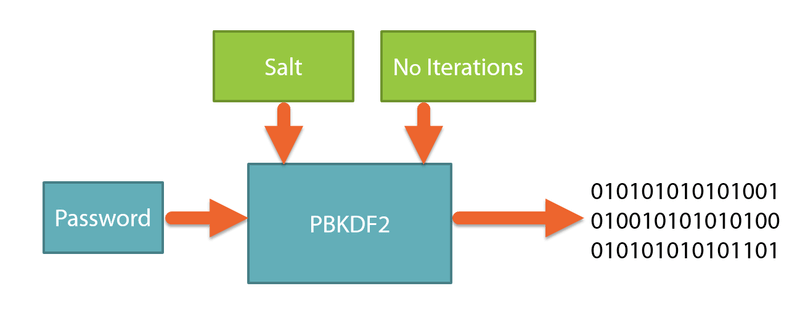
But this won’t save a short password. Slowing down each guess multiplies the attack time by a fixed factor, while every extra character multiplies the number of combinations. A password that appears in leaked-password lists, or a word plus a birth year, gets tried early, and no amount of slowdown helps.
Key files in Cryptic Disk
Cryptic Disk can require key files in addition to the password (any file will do, up to 900 of them), or a hardware token or smart card. Then opening the drive takes both knowing the password and having the file, so a password seen over your shoulder is not enough.
Keep key files apart from the encrypted drive, for example on a USB stick, and always make a backup copy. If a key file is lost or damaged, the drive can’t be opened. Your password should still be long.
Never reuse passwords
Password databases leak all the time, and attackers automatically try leaked email and password pairs on other sites. Using one password for email, social media and online shops means the weakest of them unlocks the rest.
Your encrypted drive password and your boot password should be unique and used nowhere else.
If you forget the password
- Disk Password Protection. There is no master password. You can save a password hint, so word it in a way that helps you but not a stranger. Data on a hidden partition can be recovered without the password only with data recovery tools.
- Cryptic Disk. Right after encrypting, save a backup of the encryption key (the header) to a file and keep it away from the drive. The backup is protected by the password that was valid when you saved it, so it helps if the header gets damaged or if you change the password later and forget the new one. If you forget the only password, the data is lost for good: there is no back door.
It’s fine to write a long passphrase on paper and keep it somewhere safe at home, just not next to the computer. For protecting backups and key copies, read how to encrypt an external hard drive for backups.
Quick summary
- Websites and services: a password manager, random unique passwords of 15+ characters, and a second factor wherever it’s offered.
- Passwords typed from memory: 5-6 random words, in Latin characters for a boot password.
- No scheduled changes, but change immediately after a leak.
- A password hint in Disk Password Protection; in Cryptic Disk, a header backup plus the password that was valid when you saved it, stored safely.
Downloads: Cryptic Disk and Disk Password Protection.
FAQ
How many characters should a strong password have?
At least 15 if the password is the only protection, at least 8 with a second factor. For boot and encryption passwords, use 5-6 random words, which is usually more than 20 characters.
Do I need special characters in my password?
Not necessarily. They make the alphabet slightly bigger, but length adds far more. An exclamation mark at the end of a predictable word adds almost nothing.
How often should I change my password?
Not on a schedule. Change it if a service reports a breach, or if you typed it on a suspicious site or someone else’s computer.
Is a passphrase made of common words secure?
Yes, if the words are chosen at random and there are at least 4 to 6 of them. Song lines, proverbs and normal sentences are weak because attackers try them from dictionaries.
Can I store my encrypted drive password in a password manager?
As a backup copy, yes, but you should also know it by heart: you may need it when the manager isn’t available.