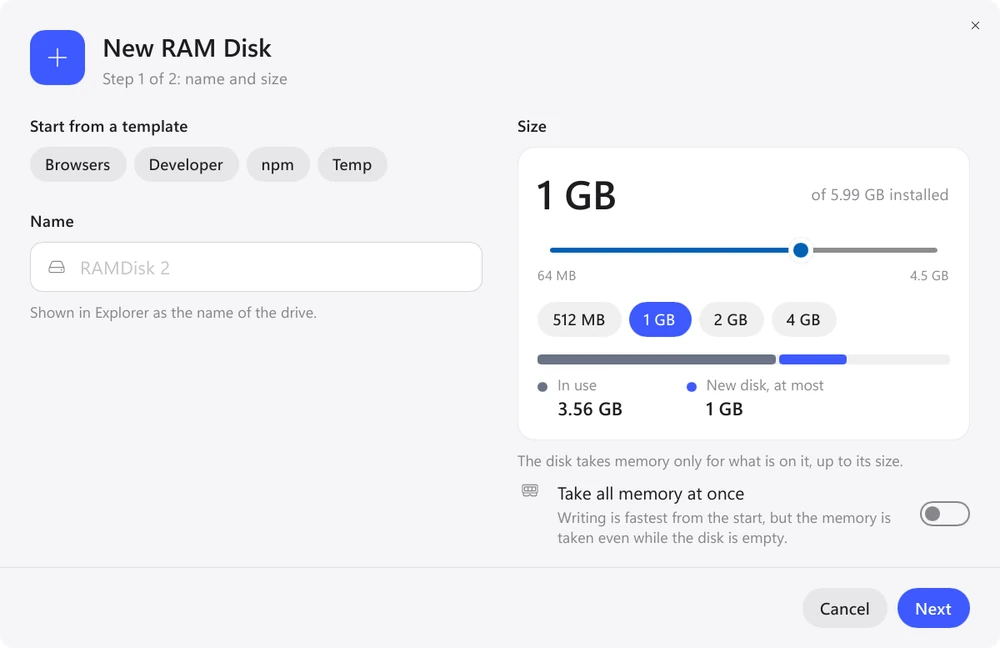
Templates are right in the new disk window. A template creates a disk of the right size at every startup and moves the app folders to it automatically. It skips folders of apps that aren't installed.
| Template | Size | What it moves | Available on |
|---|---|---|---|
| Temp | 2 GB | TEMP and TMP folders | Windows |
| Browsers | 2 GB | Chrome, Edge, Firefox caches | Windows, Linux |
| Developer | 8 GB | npm, Yarn, pip, Cargo, Gradle, Maven, Go, NuGet caches | Windows, Linux |
| npm | 2 GB | npm cache | Windows, macOS, Linux |
| Xcode | 8 GB | DerivedData | macOS |
You can save your own template from a disk you have set up: “Save as Template…” in the disk's menu. It remembers the size, format, encryption, folders and whether the disk is created at startup.
Beyond the templates, RamDisk knows where the caches of Electron apps such as VS Code are on Windows and Linux, and the Swift Package Manager, CocoaPods, Homebrew and Chrome caches on a Mac. On Windows you can point the TEMP and TMP folders to a RAM disk, and on a Mac, TMPDIR. The new temporary folder applies to apps started after that.
Any other folder can be moved with the “Add Folder…” button in the disk's settings or with the eramdisk redirect add command. On the disk, the folder starts out empty.
