The top of the window shows how much memory is free and how much RAM disks, apps and the system use. Below are the disks: how full each one is and, on Windows and a Mac, how busy it is right now.
A disk opens in File Explorer, Finder or your file manager, and in the terminal. From the disk's menu you can test its speed, see what takes up space and erase its files without ejecting the disk.
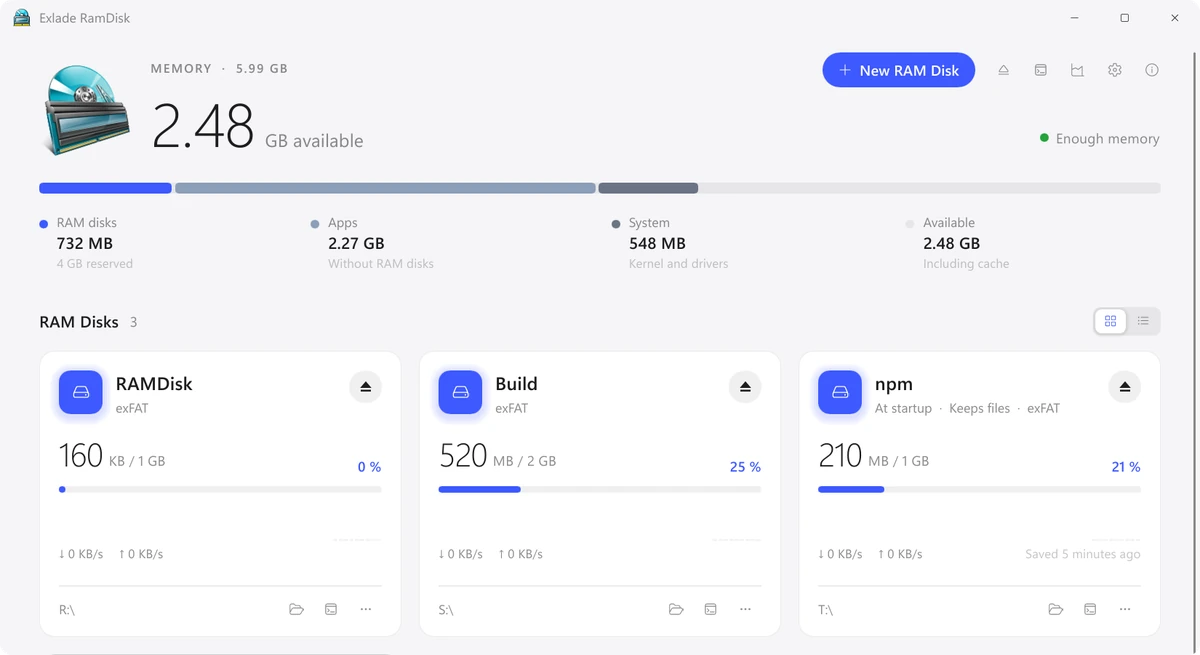
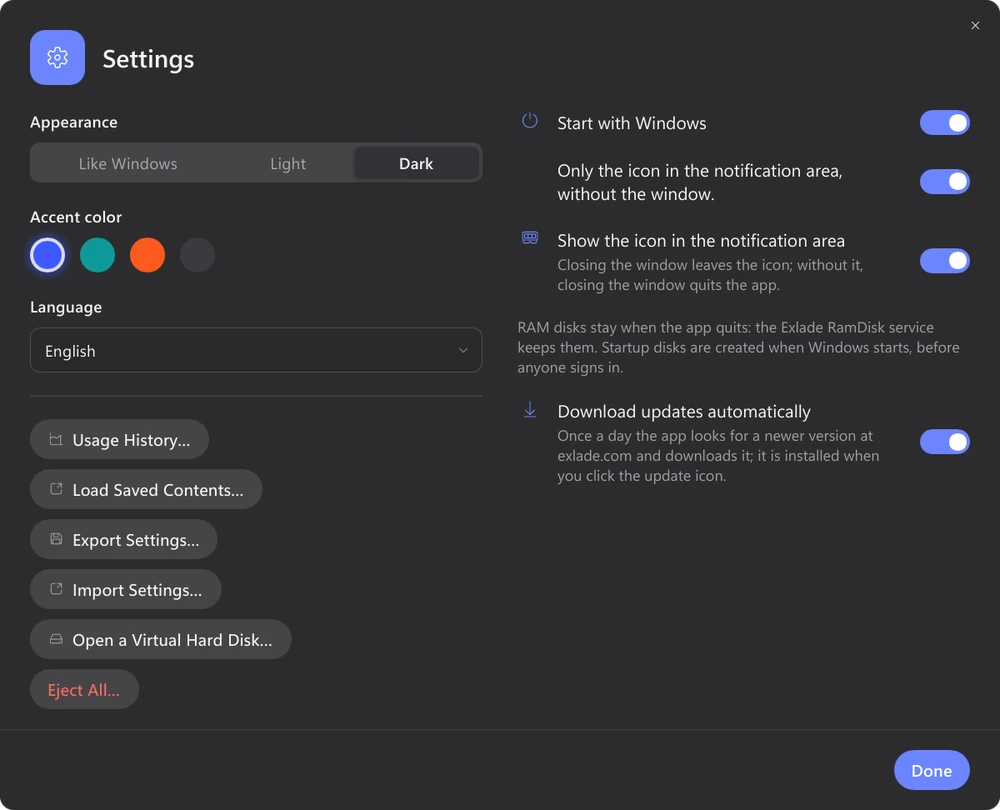
The app can follow the system appearance, or you can pick light or dark, plus one of four accent colors. The interface is translated into 16 languages.
The versions for all three systems do the same things: startup disks, keeping files, templates, history and the eramdisk tool. They differ only where the systems themselves differ.
| Windows | macOS | Linux | |
|---|---|---|---|
| Systems | Windows 10 1607 and later, 11, Server 2016-2025 on x64, Windows 11 on ARM64 | macOS 15 and later, Apple Silicon and Intel | Ubuntu 24.04, Debian 13, Fedora 40 and later, x64 and ARM64 |
| File system | NTFS, exFAT, FAT32 | APFS, HFS+, exFAT, FAT32 | tmpfs |
| Where the disk appears | a drive letter or a folder on NTFS | in /Volumes or, for “Only me” disks, in ~/Library/RamDisks/<name> | in /media or /run/media, like USB drives, or in a folder of your choice |
| Disk encryption | yes | yes | no |
| Administrator rights | for installation only | not needed | for installation only |
