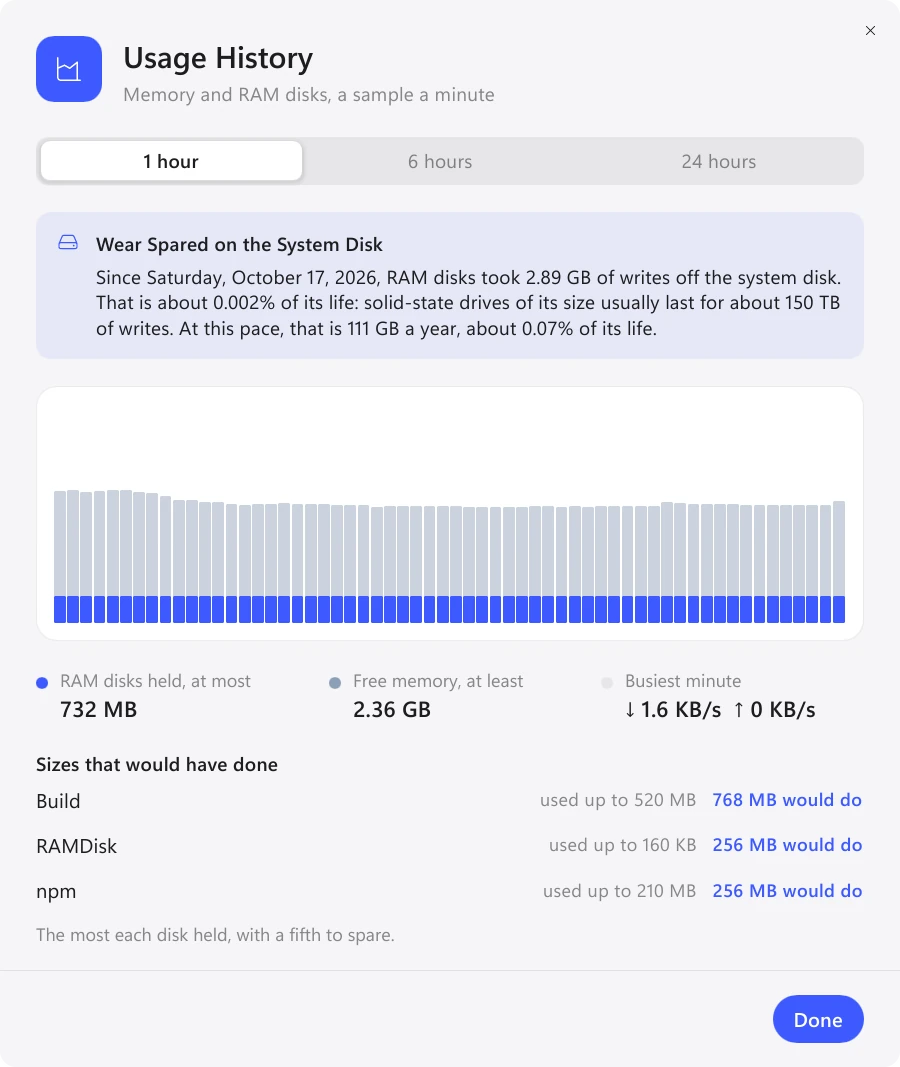
Start with the size from a template. After a day of work, open “Usage History”: it shows how much each disk used and the size that would have been enough - the 24-hour peak plus a fifth.
On Windows and Mac, RamDisk shows at the top of the history how much writing the RAM disks took off the system disk and what share of its endurance that is. Linux has no such figure: the system does not count what is written to RAM disks.
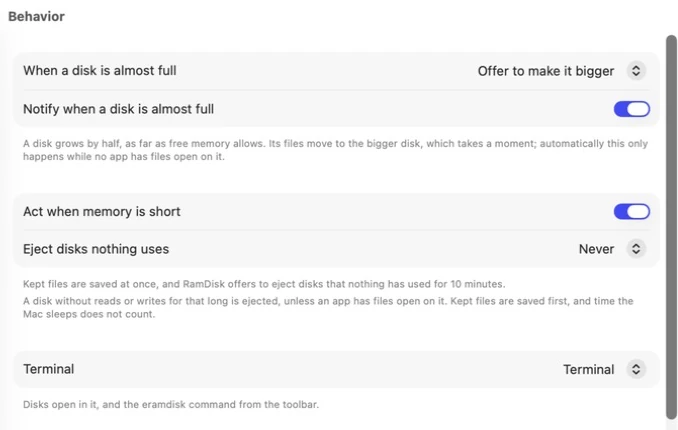
Settings → Behavior, Mac only
On Windows, RamDisk shows a notification when a disk is 90% full (clicking it opens the resize dialog) and when less than 8% of memory is free.
On a Mac, it can act on its own: when memory runs low, save files and offer to eject disks that no one has used for 10 minutes, eject unused disks after half an hour, an hour or four hours, and enlarge full disks without asking.
