Your Windows password is checked only after the system has loaded, and it protects nothing but your sign-in. If you want a PC or laptop to refuse to start Windows without a password, you need a password on computer startup: in the UEFI (BIOS), in BitLocker, or with a boot protection program.
This guide compares these options and then shows, step by step, how to set a boot password with Disk Password Protection.
Startup password options compared
Windows password or PIN (Windows Hello)
You set it in Settings > Accounts > Sign-in options, and it is available in every Windows edition.
It only protects the sign-in. The computer powers on, Windows loads and shows the sign-in screen. If the drive is not encrypted, anyone can read your files by booting from a USB stick or by connecting the drive to another computer.
BIOS/UEFI password
Most UEFI (BIOS) setup screens offer two passwords:
- a supervisor (administrator) password locks the settings: boot order, booting from USB, Secure Boot;
- a power-on (user) password is requested every time the computer is switched on, before anything boots.
It costs nothing and does not depend on the operating system. But the password lives in the computer’s firmware, not on the drive: take the drive out, connect it to another computer, and nobody asks for a password. On desktop PCs a BIOS password can often be reset by removing the CMOS battery or moving a jumper on the motherboard. On many laptops this is harder, and sometimes only a service center can do it.
Hard drive (HDD) password
The firmware of some laptops can set a password on the drive itself. The drive then stays locked even in another computer. Support depends on the laptop and the drive, and a forgotten drive password can be very hard to recover from.
BitLocker with a startup PIN
BitLocker encrypts the system drive. With a startup PIN, Windows asks for the PIN before it boots, and without the PIN or the recovery key the data stays encrypted, even in another computer. The limits:
- BitLocker is part of Windows Pro, Enterprise and Education. Windows Home only has the simpler Device encryption on compatible hardware, and it usually unlocks the drive automatically, without a PIN;
- the startup PIN has to be allowed in Group Policy and added separately;
- you must keep the recovery key in a safe place.
Boot password with Disk Password Protection
Disk Password Protection writes a boot password to the drive itself. The password is requested after the BIOS/UEFI starts and before Windows loads:
- it works in any Windows edition, including Home, on BIOS and UEFI computers, with MBR and GPT disks;
- the password is still requested when the drive boots in another computer and after the program is uninstalled;
- in stealth mode no password screen is shown, and the computer looks frozen;
- protection is turned on and off in seconds, without reinstalling Windows.
Note: the program does not encrypt the drive. If someone boots the computer from a USB stick, no password is requested, and the files on the drive can be read.
BIOS password vs Windows password: which one do you need?
- To keep other people out of your account, a Windows password or PIN is enough.
- To stop the computer from booting without a password, use a power-on password in the UEFI or a Disk Password Protection boot password. The program is handy when the password should stay with the drive, or on Windows Home, which has no BitLocker.
- To protect the files themselves, use encryption: BitLocker, Device encryption, or Cryptic Disk for data partitions and external drives.
For important data, combine these methods. Our guide How to protect your laptop and data from unauthorized access shows how.
How to set a password on computer startup with Disk Password Protection
Download the program from the download page and install it: the installer is a standard wizard. Then start the program from the Start menu.
Install boot protection
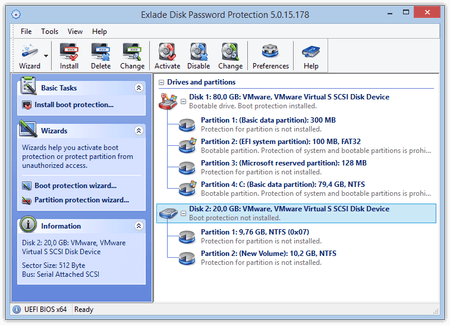
The main window lists all drives and their partitions under “Drives and partitions”. The drive that Windows starts from is marked as “Bootable drive”.
Select that drive and click “Install boot protection…” in the “Basic Tasks” panel on the left. You can also right-click the drive and choose the command to install boot protection from the menu.
Besides boot protection, the program can hide whole partitions and protect them with a password. See How to hide a disk partition.
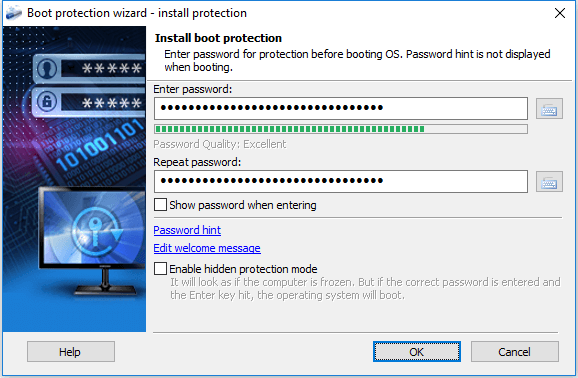
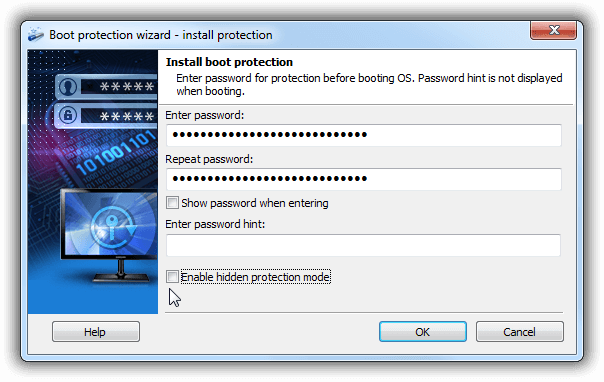
Type your password in “Enter password” and again in “Repeat password”. You will type it at every startup, so a long, memorable passphrase of several words works well (see How long should a password be).
The “Password hint” is optional. As the wizard says, the hint is not displayed when booting; the program shows it when you remove the protection. With “Edit welcome message” you can change the text on the password screen (Latin characters only).
Click “OK”. The program installs the protection and reports the result.
If Windows or another operating system starts from a removable drive, install the protection on that drive.
Check that it works
Restart the computer. Right after the BIOS (or UEFI) starts, a password prompt appears. Type the password you set and press Enter.
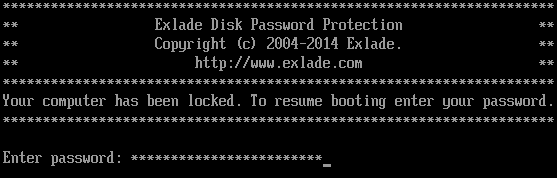
If it is correct, Windows starts. The prompt appears at every boot until you remove the protection.
Stealth mode
If you tick “Enable hidden protection mode” in the wizard, no password prompt is displayed and the characters you type are not shown. The computer looks frozen. But if you type the correct password and press Enter, Windows boots.
This is useful when you don’t want others to know that the computer is protected at all.
Remove boot protection
Start Disk Password Protection, right-click the protected drive and choose the command to remove boot protection. Enter the password you set and confirm. The same menu also has a command to change the boot password.
After that, Windows starts without asking for the password.
How to make the protection stronger
A boot password stops Windows from starting, but it does not encrypt the files and it is skipped when the computer boots from a USB stick. If the computer holds sensitive data, add two more steps:
- In the UEFI (BIOS), set a supervisor password and disable booting from USB and other external devices (or put the internal drive first in the boot order).
- Encrypt the data: the system drive with BitLocker or Device encryption, and data partitions, external drives and containers with Cryptic Disk.
On UEFI computers, boot protection in Disk Password Protection 5.6 can be used together with BitLocker.
FAQ
How do I set a password on computer startup without extra software?
Use the UEFI (BIOS). Open the setup with the key the computer shows at power-on (often Del or F2; laptops may use other keys), go to the Security section and set a power-on (user) password plus a supervisor password. Menu names depend on the manufacturer. On Windows Pro you can also turn on BitLocker with a startup PIN.
What if I forget my startup password?
It depends on the method. A BitLocker drive is unlocked with its recovery key. A BIOS password on a desktop PC can usually be cleared with the CMOS battery; a laptop may need a service center. Disk Password Protection has no master password, so set a hint in advance. The program does not encrypt the drive, so files can still be copied with data recovery tools or by booting from other media.
Can a startup password be reset or bypassed?
A Windows password does not protect files on an unencrypted drive. A BIOS password on desktop PCs can often be reset; on many laptops it is harder. A Disk Password Protection boot password survives a BIOS reset, uninstalling the program and moving the drive to another computer, but booting from a USB stick skips it, so block USB boot with a UEFI password. Encrypted data stays unreadable without the password or recovery key.
Does the boot password work with Windows 11, UEFI and Secure Boot?
Yes. Disk Password Protection 5.6 supports Windows 11, 10, 8.1, 8 and 7 SP1 (including Home), Windows on ARM (64-bit), BIOS and UEFI, MBR and GPT disks. Its UEFI modules are signed with the Microsoft UEFI CA 2023 certificate, so boot protection works with Secure Boot turned on in new PCs. On some models, especially Secured-core PCs, you first have to allow the Microsoft third-party UEFI CA in the UEFI settings (Secure Boot stays on). More on the boot protection page.