A backup drive usually sits next to the laptop, in a desk drawer or in a bag, holding years of documents, photos, work projects and scanned IDs, all unprotected. If it is lost or stolen, a stranger gets your whole archive in one go.
This guide shows how to encrypt an external hard drive or SSD on Windows with Cryptic Disk, how to run your backups to it, and how to make sure the encrypted backup still works when you need it.
Why your Windows password doesn’t protect the drive
Your Windows sign-in password protects the computer, not the external drive. Anyone can plug the drive into another PC and read every file on it.
With encryption, the contents look like random data on any computer until the password is entered. After that the drive works like a normal one: files are encrypted as they are written and decrypted as they are read.
Whole drive or encrypted container?
Encrypt the whole drive
Choose this if the drive is used only for backups and only with Windows PCs. Everything on it is encrypted, including the backup program’s own files.
The downside: other devices can’t read it. A TV, media player or Mac, or Windows on a PC without Cryptic Disk, will see an unformatted drive and may offer to format it. Say no, or your backups are gone.
Create an encrypted container on the drive
If the drive also stores movies for the TV or is shared with other devices, leave it unencrypted and create an encrypted container on it for your backups. A container is a file that Cryptic Disk mounts as a separate drive letter when you enter the password. Other devices see their usual files and leave the container alone, while everything inside it stays encrypted.
A few practical points:
- you set the container size when you create it, so leave room for future backups;
- FAT32 can’t store files larger than 4 GB, so a large container needs a drive formatted as NTFS or exFAT;
- a container can be copied to another drive like any file, which is handy for a second backup.
How to encrypt an external drive with Cryptic Disk
Cryptic Disk encrypts drives and partitions, including USB sticks and external HDDs and SSDs. The full walkthrough with every wizard screen is in How to Encrypt a Volume. In short:
- Download Cryptic Disk and install it. It runs on Windows only (11, 10, 8.1, 8, 7, Vista, XP).
- Connect the external drive. In the main window, right-click its partition and choose “Encrypt Volume…”.
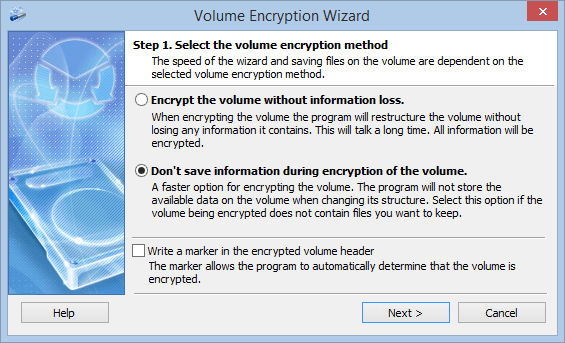
- Pick the encryption method:
- “Encrypt the volume without information loss” keeps your files in place, but takes a long time because every sector is processed, including empty ones. NTFS and FAT32 are supported;
- “Don’t save information during encryption of the volume” is much faster, but erases everything on the drive. Use it for a new drive or if you are happy to run a fresh full backup.
- If you chose the second method, set the format options. NTFS is a sensible choice for a Windows backup drive.
- You can leave the encryption settings at their defaults. AES uses hardware acceleration (AES-NI) on modern processors.
- Set the password. A long phrase of several random words works best (see how long a password should be). You can also add key files, but then you must store and back them up separately from the drive.
- Review the settings and start. When the wizard finishes, click “Save a backup of the header now” (more on why below).
Backing up to the encrypted drive
Once mounted with your password, the drive shows up in File Explorer with an ordinary drive letter. Backup software treats it like any other drive, and the encryption happens in the background.
- Select that drive as the destination in your backup program. Any backup tool that can write to a regular drive letter will do. Check in its settings that it sees the mounted drive, and run backups only while the drive is mounted.
- Backup programs remember the drive letter. To keep it fixed, open “Encrypted Volume Properties”, turn on “Save mount settings for this volume” and pick a permanent letter.
- On the “Actions” tab of the same window you can run a program or script after mounting, for example to start the backup straight away. There is also a command line for your own scripts.
- Scheduled backups only work if the drive is connected and mounted at that moment. If a backup didn’t run, check this first.
Disconnecting the drive safely
- When the backup is done, unmount the drive in Cryptic Disk (main window, tray icon or a hot key), then eject it.
- If the drive is unplugged without unmounting, Cryptic Disk closes access to it automatically. Files being written at that moment can be damaged, though, so unmount first.
- Access to encrypted drives is also closed automatically when the PC shuts down or loses power.
- Don’t leave the backup drive plugged in all the time. Ransomware that gets onto your PC can damage everything it can reach, including a connected backup drive.
Alternative: BitLocker To Go
Windows Pro, Enterprise and Education include BitLocker To Go, which encrypts USB sticks and external drives with built-in tools. Windows Home can’t encrypt a drive this way, only unlock one that is already encrypted. Save your BitLocker recovery key: without it you can lose access to the drive after a failure.
Cryptic Disk works on any Windows edition, Home included, and adds containers, hidden volumes, key files and tokens, but has no macOS or Linux version.
Some backup programs can also encrypt their own backup archives with a password. That protects the archive, but any files you copy to the drive by hand stay unencrypted.
The 3-2-1 rule and your key backup
Encryption keeps strangers out, but won’t help if the drive itself dies or disappears. For important data, follow the 3-2-1 rule:
- 3 copies of your data: the working copy and two backups;
- 2 different media, for example two external drives, or a drive and the cloud;
- 1 copy kept off-site: at the office, with family, or encrypted in the cloud.
Take care of the key as well. Cryptic Disk can save a backup of the encryption key (the volume header) to a file and restore it later (“Encrypted Volume Header” in the context menu). The backup stays protected by the password that was valid when you saved it. It helps if the header on the drive gets damaged, or if you changed the password later and forgot the new one: you restore the old header and open the drive with the old password. It does not help if you forget the only password. Keep the file away from the drive (not on the drive itself and not in the same bag), and remember or safely store the password that was valid when you saved it. Without the password, the data can’t be recovered: there is no back door.
Test your restores
A backup you have never restored from is only a hope. Every few months:
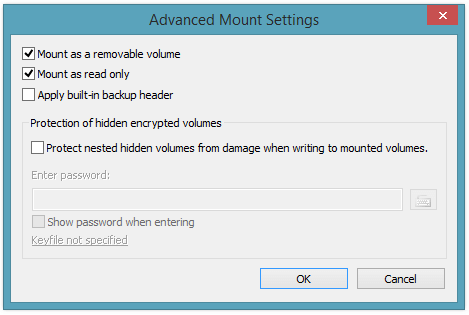
- Mount the drive read-only: click “More…” in the mount window and tick “Mount as read only”. That way nothing changes by accident while you test.
- Restore a few files to a separate folder and open them.
- Make sure you still remember the password and know where the key backup is.
- If you ever need to restore on another PC, it needs Cryptic Disk too, either installed or in portable mode.
FAQ
Can I password protect an external hard drive without encryption?
Not with Windows itself. Tools that only hide or lock a drive leave the data readable by recovery software. Disk Password Protection, for example, hides partitions on external drives but doesn’t encrypt them. Backups need real encryption.
Will encryption slow down my backups?
Usually not noticeably. Cryptic Disk encrypts data in memory and uses hardware AES acceleration; the external drive and USB connection are more often the bottleneck.
Can I open the encrypted drive on a Mac or a TV?
No. Cryptic Disk runs on Windows only; there are no macOS, Linux, Android or iOS versions. If other devices need the drive, keep your backups in an encrypted container on an unencrypted drive.
Can I encrypt an external drive that already has files on it?
Yes, with the method that encrypts without information loss (NTFS and FAT32). It takes a while, so keep a copy of anything important somewhere else, just in case.
What if I forget the password to my encrypted backup drive?
If you changed the password and forgot the new one, a header backup saved before the change helps: restore it and open the drive with the old password. If you forget the only password, the drive can’t be opened: there is no back door.