
On a trip, a laptop is far more likely to end up in someone else’s hands than at home: it gets left in a taxi, grabbed at an airport café or left alone in a hotel room. The hardware can be replaced; your documents, emails and access to work systems are much harder to get back.
Here is how to prepare before you leave, which habits to keep on the road and what to do if the laptop goes missing.
What can go wrong on a trip
- Theft at airports, train stations and cafés. A laptop bag disappears in seconds while you check the departures board.
- Leaving it behind. A taxi, the overhead rack on a train, the tray at security.
- The hotel room. While you’re out, someone has time to turn the laptop on, boot it from a USB stick or take the drive out.
- Public Wi-Fi. At an airport or hotel you don’t know who set up the network. An access point with a familiar-looking name can be fake.
Your Windows password does little against these risks: it only protects the sign-in. If the drive isn’t encrypted, someone can connect it to another computer or boot the laptop from a USB stick and read your files.
Before the trip: prepare your laptop
1. Take only the data you need
Data that isn’t on the laptop can’t be stolen with it. Move archives, old projects and personal photos to a home computer or an external drive, and keep only what you’ll work with on the trip.
If you’re traveling abroad, keep in mind that border checks are governed by local law, and you may be required to give access to your devices. That’s one more reason to carry only what you need.
2. Back up and leave the backup at home
If the laptop is lost, a backup is the only way to get your files back. Copy everything important to an external drive and leave it at home, not in the same bag. Keep your BitLocker recovery key and the Cryptic Disk header (encryption key) backup there too. Remember that the header backup is protected by the password that was valid when you saved it: without the password, encrypted data can’t be recovered.
Also write down the laptop’s serial number for a police report or an insurance claim.
3. Encrypt your data
Encryption protects your data even after the laptop is gone. Without the password, an encrypted drive looks like random data, whichever computer it’s connected to.
- System drive (C:): use BitLocker (Windows Pro, Enterprise, Education) or Device encryption (Windows Home, on compatible hardware only). Save the recovery key.
- Data partitions, external drives and USB sticks: encrypt them with Cryptic Disk. Cryptic Disk can’t encrypt the system partition, so BitLocker stays in charge of C:.
- Encrypted container: handy for travel. It’s an ordinary file that you mount with your password as a separate drive in File Explorer, so all your work documents live in one file you can copy anywhere. See How to Create an Encrypted Container.
4. Set a pre-boot password and a UEFI password
Disk Password Protection asks for a password before the operating system starts. Without it Windows won’t boot, even if the drive is moved to another computer or the program is uninstalled. In stealth mode no password screen appears at all, and the laptop simply looks frozen.
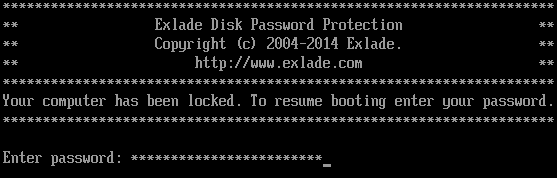
Disk Password Protection doesn’t encrypt data, and booting from a USB stick skips the password prompt. So add a few UEFI (BIOS) settings:
- set a UEFI administrator (supervisor) password;
- disable booting from USB and other external devices;
- keep Secure Boot on: the UEFI modules of Disk Password Protection 5.6 are signed with Microsoft UEFI CA 2023 and work on new laptops with Secure Boot enabled. On some models, especially Secured-core PCs, you first have to allow the Microsoft third-party UEFI CA in the UEFI settings; test it at home before you travel.
Learn more about boot protection or follow the step-by-step guide on how to set a password on computer startup.
5. Update Windows and your apps
Install Windows, browser and antivirus updates at home: a large update may not download over hotel Wi-Fi, and security fixes close vulnerabilities that attackers already know about. If you use a Microsoft account, turn on Find my device in Windows settings.
On the road: a few simple habits
Shut down instead of sleep. In sleep mode, encrypted drives stay mounted and the encryption keys stay in memory. When you shut down, Cryptic Disk closes access to its encrypted drives automatically, and the next start asks for the pre-boot password and the drive passwords again.
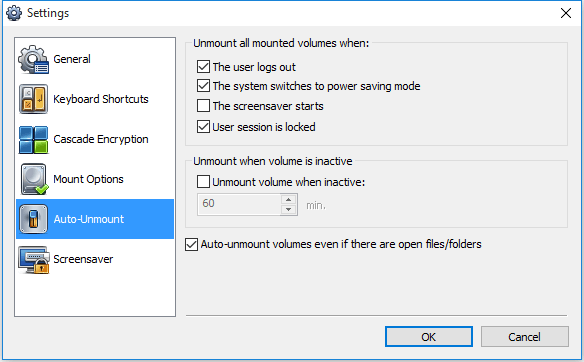
Lock the screen (Win + L) even if you step away for a minute. Cryptic Disk can unmount drives automatically: on the “Auto-Unmount” page of the program settings, check “User session is locked” and “The system switches to power saving mode”. You can also unmount a drive after a period of inactivity.
Don’t plug in unknown USB sticks. A stick found in a hotel lobby or handed out at a trade show can carry malware.
Use a VPN on public Wi-Fi. Ask staff for the exact network name and turn off automatic connection to open networks. A hotspot from your phone is usually a safer choice than shared hotel Wi-Fi.
Keep the laptop with you. Carry it in your hand luggage, not in checked bags, and watch the tray at security.
Hidden volumes for especially sensitive data
Sometimes encryption alone isn’t enough: someone who wants your data may try to force you to give up the password. For that case Cryptic Disk offers hidden volumes.
Inside an encrypted container or drive you create a second, hidden encrypted volume. The password you enter decides which one is mounted. Without the password nobody can prove that the hidden volume exists: it looks like random data. If someone forces you to open the container, the outer volume shows ordinary work files while your most private data stays closed. Hidden volumes can be nested up to three levels deep.
It’s a privacy feature: it protects personal data from someone who got hold of your laptop and pressures you to unlock it.
If your laptop is stolen or lost
- Change your passwords: email, Microsoft account, banking and work services. Start with any passwords saved in the browser.
- Sign out of all sessions in email, messaging apps, cloud storage and social networks, and remove the missing laptop from your trusted devices.
- Tell your IT department if it’s a work laptop, so they can block access to company systems.
- Report it. File a police report for a theft, and contact the airline, taxi company or hotel for a loss. Keep the report number for insurance.
- Try to locate it through your Microsoft account if Find my device was on.
- Restore your data from the backup on a new computer.
If the drive was encrypted and protected with a pre-boot password, the thief gets the hardware, not your files.
Pre-trip checklist
- Data you don’t need is moved to a home computer.
- The backup and recovery keys stay at home.
- The system drive is encrypted with BitLocker or Device encryption; data sits on an encrypted partition or in a container.
- A pre-boot password is on; the UEFI password is set and USB boot is disabled.
- Windows and apps are updated, and a VPN is set up.
Download Cryptic Disk and Disk Password Protection. For a broader overview, read How to Protect Your Laptop and Data from Unauthorized Access.
FAQ
Is a Windows password enough to protect a laptop while traveling?
No. It only protects the sign-in: the drive can be read in another computer or after booting from a USB stick. Encryption plus pre-boot and UEFI passwords protect the data.
Should I use sleep mode or shut down my laptop when traveling?
Shut it down. In sleep mode encrypted drives stay mounted and the keys stay in memory; after a shutdown, passwords are required again.
Do I need a VPN on hotel and airport Wi-Fi?
Yes, on any shared network. A VPN encrypts traffic between your laptop and the VPN server, so whoever runs the access point can’t see what you send.
Can Cryptic Disk encrypt my whole laptop?
Cryptic Disk can’t encrypt the system partition. Use BitLocker or Device encryption for C:, and Cryptic Disk for data partitions, external drives and containers.
What should I do if my work laptop is stolen?
Tell your IT department right away, change your passwords, sign out of all sessions and file a police report. If the drive was encrypted, the files stay out of the thief’s reach.