You right-click a drive in File Explorer, look for the BitLocker command and it isn’t there. That’s normal: BitLocker is part of Windows 11 Pro, Enterprise and Education, not Home. But Home has Device encryption, and other tools cover the rest.
- Full BitLocker: only in Pro, Enterprise and Education.
- Home has Device encryption: system and internal drives, on supported hardware, with only an on/off switch.
- System drive without it: VeraCrypt or an upgrade to Pro.
- Data partitions, USB sticks, external drives: Cryptic Disk, on any edition.
- Password before Windows starts: Disk Password Protection, together with encryption.
What Windows 11 Home has: Device encryption
Device encryption is a simplified BitLocker. According to Microsoft’s documentation, it uses BitLocker technology to encrypt the system drive and internal fixed drives on all Windows editions, Home included. It doesn’t encrypt external drives or USB sticks.
It needs a usable TPM, Secure Boot and a configured Windows Recovery Environment. Before Windows 11 24H2 it also required Modern Standby or HSTI and no unprotected external DMA ports, which ruled out many desktops and older laptops; 24H2 dropped those two, so more devices qualify.
How to check whether Device encryption is on
Settings > Privacy & security > Device encryption. Switch on: the system drive is encrypted. No such item: your PC doesn't meet the requirements, or you use a standard (non-administrator) account.
Run System Information (msinfo32) as administrator. The device encryption support line says the prerequisites are met or lists what's missing, such as an unusable TPM or Secure Boot turned off.
If it was backed up to your Microsoft account, find it at aka.ms/myrecoverykey. Write it down or print it and keep the copy away from the laptop.
After a firmware update, a hardware change or a change in UEFI settings, Windows can ask for the recovery key at startup. Without it you lose access to your own files.
What Windows 11 Home can’t do
- Device encryption of C: and internal drives
- The same encryption technology as BitLocker
- Usually unlocks a BitLocker To Go drive from a Pro PC, with its password or recovery key
- No BitLocker settings: no PIN before startup, no choice of encryption strength
- No BitLocker To Go: can't encrypt USB sticks or external drives
- Only automatic unlock: the TPM unlocks the system drive, Windows boots to the sign-in screen
Automatic unlock protects a switched-off laptop whose drive is removed and read in another PC. At a running PC, everything depends on your Windows password.
Your options on Windows 11 Home
VeraCrypt: read the documentation first, system encryption changes the boot process. Create the Rescue Disk and keep it safe: it recovers the PC if the boot loader gets damaged.
Cryptic Disk for data, USB sticks and external drives
Cryptic Disk encrypts:
- a data partition such as D:, to keep documents, photos and projects apart from Windows;
- an external drive with backups: encrypt an external drive for backups;
- a USB stick: password protect a USB flash drive;
- a container file that mounts as a drive letter with the password, if you’d rather not repartition.
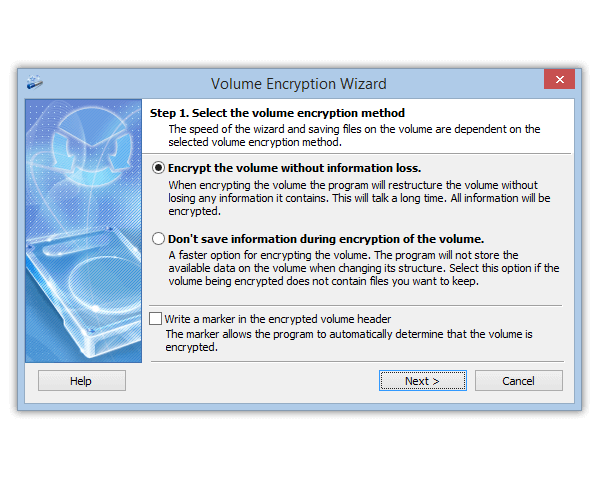
An existing partition is encrypted with formatting (fast, erases the data) or without information loss (FAT32 and NTFS, slower). AES, Serpent, Twofish and others in XTS mode, cascades, a password and/or key files. No marker by default: without the password nobody can prove a drive holds encrypted data.
What it doesn't do: encrypt the system partition. Leave C: to Device encryption or VeraCrypt, keep sensitive files on an encrypted data partition or in a container. A bonus: C: unlocks when Windows starts, a Cryptic Disk drive stays closed until you mount it with its own password. Paid: a 30-day trial, then a one-time license per user.
A pre-boot password with Disk Password Protection
Disk Password Protection closes the gap of automatic unlock: whoever turns on your laptop sees a password prompt, not Windows booting. Guide: how to set a password on computer startup.
DPP does not encrypt anything. It doesn't stop booting from a USB stick or reading the drive in another computer. Use it with encryption, not instead of it.
Which option fits your situation
| Situation | What to use on Windows 11 Home |
|---|---|
| Device encryption is on | Keep it, save the key; sensitive files in a Cryptic Disk container or encrypted partition |
| Device encryption isn’t available | VeraCrypt or Pro for C:; Cryptic Disk for data |
| USB stick or external drive | Cryptic Disk (drive or container), or BitLocker To Go on Pro |
| Password before Windows starts | DPP with encryption, BitLocker with a PIN on Pro, or VeraCrypt |
| Laptop shared with family | Device encryption for C: plus a Cryptic Disk container only you open |
| Only built-in tools | Upgrade to Pro |
Wider comparison: encryption software for Windows compared.
A few rules for any choice
FAQ
Can I enable BitLocker on Windows 11 Home?
Not full BitLocker, it’s only in Pro, Enterprise and Education. Home has Device encryption: BitLocker for system and internal drives on supported hardware, with an on/off switch only.
Is Device encryption as secure as BitLocker?
Same encryption technology, less control: no PIN before startup, no BitLocker To Go, no settings, and the drive unlocks automatically at startup.
Can Windows 11 Home open a BitLocker-encrypted USB drive?
Usually yes: for a drive encrypted with BitLocker To Go on a Pro PC, Home asks for its password or recovery key. It can’t encrypt a new drive with BitLocker.
Does Cryptic Disk work on Windows 11 Home?
Yes, on every edition of Windows 11 and 10 and older versions down to XP. Data partitions, external drives, USB sticks and containers, not the system partition.
Where is my Device encryption recovery key?
Usually in your Microsoft account: open aka.ms/myrecoverykey on another device. If someone else set up the PC, it may be in their account. Check before you need it.
No limitations during the trial. Every edition of Windows 11 and 10, Home included, and older versions down to XP.
Free Trial Pricing & Buy