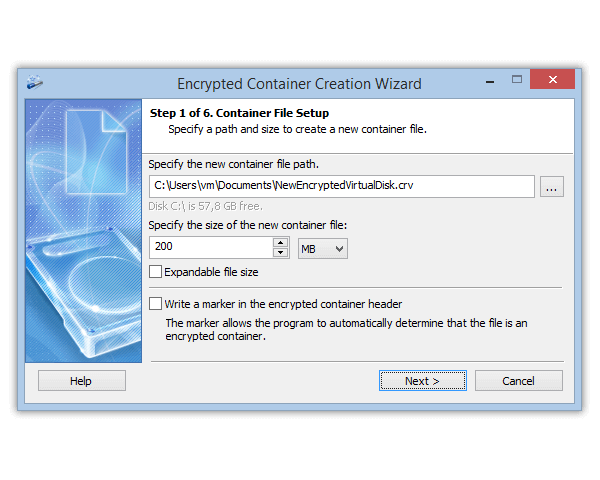
VeraCrypt is free, open source and very capable. It is also the program people most often call “too complicated”. If you gave up halfway through its wizard, or miss something it doesn’t offer, this article is for you.
- VeraCrypt is safe: people leave because of usability, platforms and support.
- Mainly the system disk: BitLocker (Pro) or Device Encryption (Home) is often simpler.
- Containers, data drives, USB sticks: Cryptic Disk: hidden volumes up to 3 levels, TrueCrypt support. Windows only, no system disk.
- Moving over: no conversion, you copy the files between two mounted volumes.
Cryptic Disk is our program, so we also say when to stay with VeraCrypt. All tools at a glance: encryption software for Windows compared.
What VeraCrypt does well
- Free and open source; never a commercial version, say the developers
- System drive encryption with a password before Windows starts
- Hidden volumes (other password) and a hidden operating system
- AES, Serpent, Twofish, Camellia, Kuznyechik and cascades
- The same container opens on Windows, macOS and Linux
- Many choices in the wizard, plus PIM
- Rescue Disk for system encryption
- Officially Windows 10 and later
- No TrueCrypt mode, no paid support
Where VeraCrypt users get stuck
These are about ease of use and fit, not about whether VeraCrypt is secure.
Alternative 1: BitLocker, if you mainly care about the system disk
If “a stolen laptop must not reveal my files” is the goal, BitLocker is often simpler than VeraCrypt system encryption: built into Windows Pro, Enterprise and Education, works with the TPM chip, and the recovery key can be stored in your Microsoft account. On Home, Device Encryption does the job if the hardware supports it; if not, see Windows 11 Home without BitLocker.
What BitLocker doesn't offer: hidden volumes, macOS or Linux; containers only as VHD/VHDX files. While you are signed in to Windows, all files on the drive are readable.
Alternative 2: Cryptic Disk, if you work with containers and data drives
Cryptic Disk covers what most people use VeraCrypt for day to day: containers, data partitions, external drives and USB sticks.
| VeraCrypt | Cryptic Disk | |
|---|---|---|
| Price | free, open source | paid once, 30-day free trial |
| System partition | yes, pre-boot password | no |
| Containers, data partitions, USB | yes | yes |
| Hidden volumes | 1 per volume, plus hidden OS | nested up to 3 levels |
| Cascades | up to 3 algorithms | AES, Serpent, Twofish, Blowfish, CAST6; key up to 2,944 bits |
| TrueCrypt volumes | only before 1.26.7 | yes, containers and drives |
| VeraCrypt volumes | yes | no |
| Platforms | Windows 10 and later, macOS, Linux | Windows 11, 10, 8.1, 8, 7, Vista, XP |
| Support | docs, community forum | developer, 1 year included |
- More deniability: 3 levels of hidden volumes, no markers by default, so without the password nobody can prove there is encrypted data (plausible deniability, hidden disk guide)
- TrueCrypt without old software, format detected automatically (TrueCrypt in 2026)
- Convenience: hot keys, auto-unmount, programs or scripts on mount and unmount, portable mode
- System disk: protect it with BitLocker or Device Encryption, keep sensitive files on a data partition or in a container
- macOS and Linux: sharing containers with Mac or Linux users means staying with VeraCrypt
License: $94 per user, once, with a year of updates and support. The 30-day trial has no limitations, so test it on a copy of your data first.
When to stay with VeraCrypt
Stay if you need system encryption and BitLocker or Device Encryption isn't available, want a hidden operating system, open the same containers on macOS or Linux, or free and open source is a must for you or your organization. Or simply if your setup works and you are comfortable with it: switching tools brings no security benefit by itself.
Moving a VeraCrypt container to Cryptic Disk
There is no in-place conversion: you copy the files from one mounted volume to the other.
Install Cryptic Disk and keep VeraCrypt for now. Mount the VeraCrypt container as usual and note its drive letter.
Larger than the data you are moving, with a new, long password. See how to create an encrypted container.
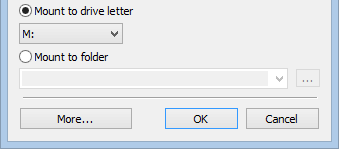
Copy all files in File Explorer, open a few of them and compare the number and size of files and folders.
Save a backup of the new container's header and keep it away from the container.
Keep the old container until you are sure nothing is missing, then delete it.
FAQ
Is there a free alternative to VeraCrypt?
Yes: BitLocker (Pro) and Device Encryption (Home) for the system disk, 7-Zip archives with AES-256 for single files. Cryptic Disk is paid, with a 30-day trial.
Can Cryptic Disk open my VeraCrypt container?
No, only TrueCrypt and Cryptic Disk volumes. Mount the container in VeraCrypt and copy the files into a Cryptic Disk container.
Can Cryptic Disk encrypt the system drive like VeraCrypt?
No. Use BitLocker, Device Encryption or VeraCrypt for the Windows partition, Cryptic Disk for data partitions, external drives and containers.
Is VeraCrypt unsafe?
No. People switch for usability, platforms and support, not because of weak encryption.
What if I forget the password of the new container?
The data can’t be recovered, just as with VeraCrypt. A header backup only helps if you remember the password valid when you saved it. Choose a long passphrase you can remember.
No limitations during the trial. Windows 11, 10, 8.1, 8, 7, Vista and XP.
Free Trial Pricing & Buy