A tax return for your accountant, a passport scan on a laptop, a contract on a USB stick: the file should open only with the password. Windows has no “set password” command for a file, but there are several reliable ways.
- Office documents: Office encrypts them itself with AES-256.
- PDF: a password to open, set in a PDF editor.
- Any file you send: a 7z archive with AES-256 and encrypted file names.
- Files you edit daily: an encrypted container that opens as a drive.
- EFS is tied to your Windows account, not to a password.
For a whole folder, see how to password protect a folder in Windows.
What Windows can and can’t do
File Explorer creates ZIP archives (“Compressed (zipped) folder”) and, in recent Windows 11, 7z and TAR, but none with a password: Microsoft’s help says the built-in support doesn’t work with encrypted archives and suggests 7-Zip or WinRAR. EFS has no password of its own either. So you need the program that made the file, an archiver or encryption software.
Method 1: Word, Excel and PowerPoint: “Encrypt with Password”
- Open the document and go to File > Info.
- Click Protect Document (in Excel Protect Workbook, in PowerPoint Protect Presentation) and choose Encrypt with Password.
- Enter the password, confirm it, and save the file.
Modern .docx, .xlsx and .pptx files get AES with a 256-bit key by default. The old .doc, .xls and .ppt only get the outdated RC4, which Microsoft doesn’t recommend: save in the new format first.
- No extra software
- The recipient only needs Office
- Works as usual after the password
- Office documents only
- Word can't recover a forgotten password
- The file name stays visible
- "Restrict Editing" and a password to modify are not encryption: anyone can read the file
Method 2: a password on a PDF
The free Adobe Reader can’t set a password to open, but Adobe Acrobat and many other PDF editors can. In Acrobat, choose the “Acrobat X and later” compatibility level: it gives AES with a 256-bit key, older levels encrypt more weakly.
A "permissions password" that only blocks printing or editing doesn't protect the contents: the document still opens without a password.
Method 3: a 7z archive with AES-256 (for any file)
The free archiver 7-Zip encrypts with AES-256 and can also hide the file names inside.
Install 7-Zip from the official site. Select the files in File Explorer, right-click and choose 7-Zip > Add to archive... In Windows 11 you may need Show more options first.
Set Archive format to 7z and enter the password twice in the Encryption section. For 7z the method is always AES-256.
Without it, anyone can see the list of files inside without a password.
Check that it opens with your password, then delete the original if you no longer need it.
ZIP or 7z?
7-Zip also sets passwords on ZIP files. ZipCrypto opens almost anywhere but is old and weak. AES-256 is strong, but 7-Zip's help notes that only 7-Zip, WinZip and some other archivers support it, and ZIP can't encrypt file names. If the recipient can install 7-Zip, send 7z.
- Free, any file type
- Good for sending and storing
- To edit, you extract an unencrypted copy and pack it again
- The recipient needs an archiver that supports AES
Method 4: EFS, encryption without a separate password
In Windows Pro, Enterprise and Education, open a file’s Properties, click Advanced and tick Encrypt contents to secure data. This Encrypting File System (EFS) has no password per file: the key is linked to your Windows account.
- Against other accounts on the same PC
- Against a stolen disk, if your account password is strong
- Opens for anyone signed in as you or at your unlocked PC
- NTFS only, not in Windows Home
- A copy on a FAT32 or exFAT stick or in an email is not encrypted
Back up the key. After reinstalling Windows or deleting your profile, EFS files can't be opened, even with the same user name and password. Export the certificate with its private key to a password-protected PFX file on another drive: Windows offers this after the first encryption, or run cipher /x.
More on EFS in the folder guide.
Method 5: an encrypted container for files you use every day
For documents you edit daily, repacking archives gets tiring, and extracted copies end up forgotten in Downloads. An encrypted container is a file that Cryptic Disk mounts with your password as a drive in File Explorer. You edit files right there: they are encrypted on write and decrypted on read, so nothing has to be extracted. After unmounting, everything in the container is encrypted again. Programs may still leave temporary files or the page file on drive C:, so encrypt the system drive too (BitLocker or Device Encryption).
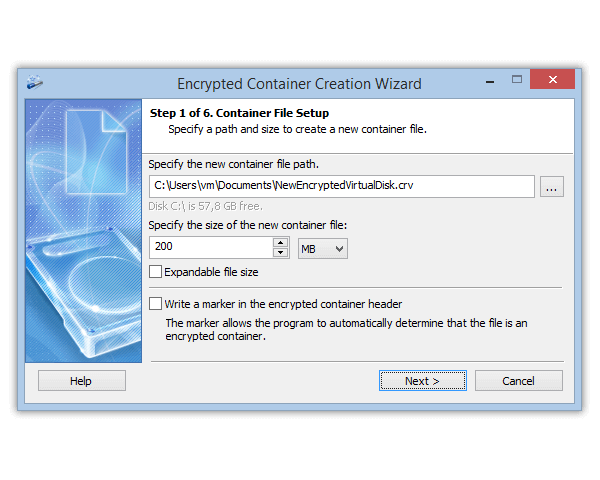
Install Cryptic Disk, choose the file location, size and password. Step by step: how to create an encrypted container.
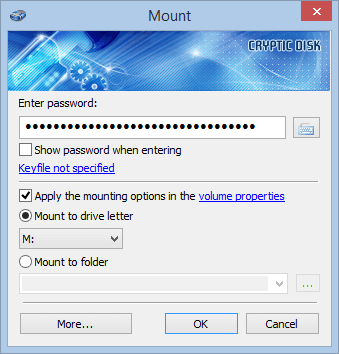
Enter your password and pick a drive letter.
Then delete the originals and empty the Recycle Bin.
Cryptic Disk can do it automatically when you lock the session with Win+L, sign out or leave the drive unused for a while.
By default the container has no markers: without the password, nobody can even prove it holds encrypted data. It copies to a USB stick or the cloud like any file.
- Any Windows edition, Home included
- Files are edited in place
- One password for a whole set of documents
- AES and other algorithms
- Windows only; whoever opens the container needs Cryptic Disk, so it isn't for sending files
- After the 30-day free trial, $94 per user, one-time payment
Which method for which situation
Tips
FAQ
Can I password protect a file in Windows 11 without extra software?
Not with Windows alone: File Explorer can’t set archive passwords, and EFS uses your account instead. Office encrypts its own documents; other files need an archiver such as 7-Zip or encryption software.
Is a ZIP password safe?
With AES-256 and a long password, yes, but ZIP still shows the file names (7z with encrypted names hides them). The old ZipCrypto is weak: not for anything sensitive.
Can I open an encrypted file on a phone?
Usually yes: Microsoft’s Office apps for iPhone and Android open password-protected Office files, most PDF readers open protected PDFs, and 7z with AES needs an archiver app that supports it. A Cryptic Disk container opens only on a Windows PC.
What if I forget the password?
7-Zip and Cryptic Disk have no back door, and Word can’t recover it either (a company IT department can help only if it set up Microsoft’s recovery tool before the password was created). In practice the file is lost: pick a password you will remember or keep it somewhere safe.
No limitations during the trial. Windows 11, 10, 8.1, 8, 7, Vista and XP.
Free Trial Pricing & Buy