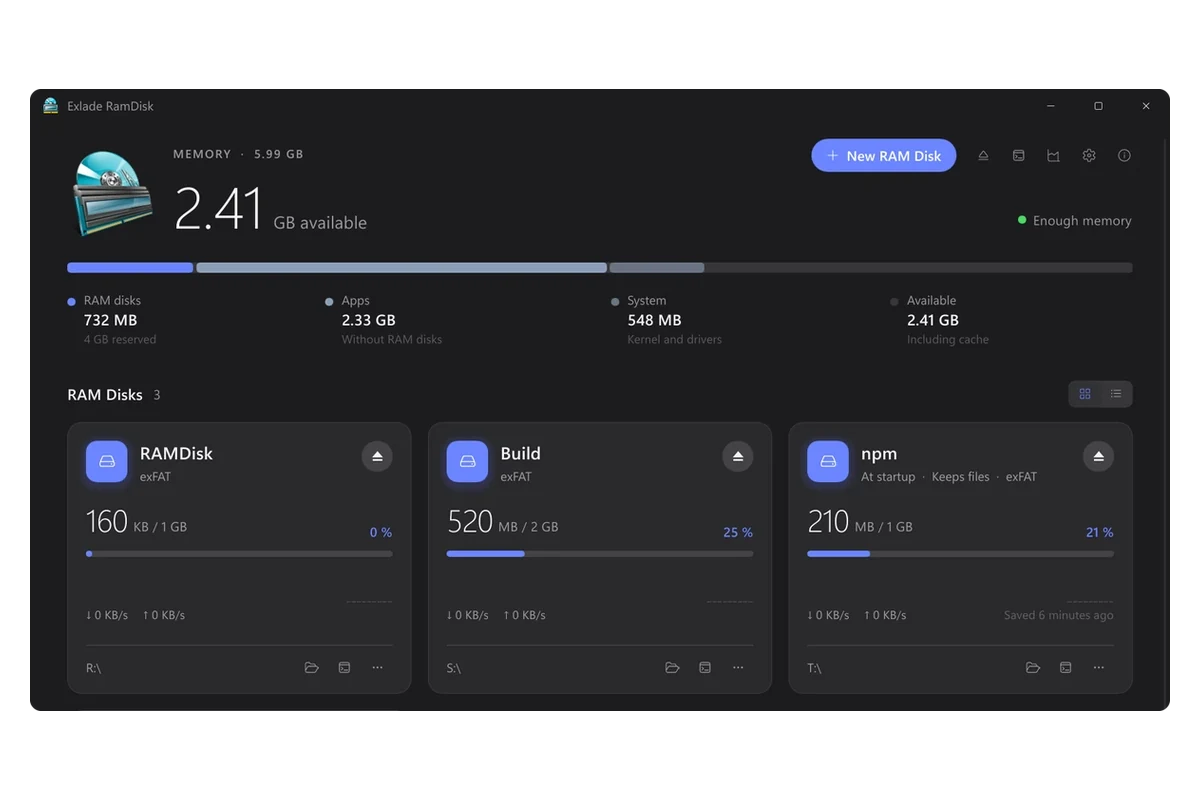
A browser writes copies of pictures, scripts and pages to the disk all day long. Move that cache to a RAM disk, and the writes go to memory instead of the SSD, and the cache disappears when you restart the computer. Here is what that gives you, and how to do it by hand or in one click.
- You gain: fewer SSD writes and a cache that is gone after every restart.
- Don't expect: much faster browsing. Browsers already keep what you use in memory.
- By hand: the
--disk-cache-dirflag in Chrome and Edge,browser.cache.disk.parent_directoryin Firefox, or a junction. - In one click: the Browsers template in Exlade RamDisk. Close the browser first.
What you gain and what you don’t
- the SSD is spared constant small writes
- the cache is cleared on every restart, with the copies of the sites you visited
- the cache can't quietly grow to gigabytes on the system disk
- pages to open much faster: the browser and Windows already keep recently used files in memory
- history, cookies and passwords to go away: they stay in the profile on the SSD
- a warm cache after a restart: sites load everything again the first time
Not sure a RAM disk pays off at all? Read Is a RAM disk worth it.
Doing it by hand
All three ways need a RAM disk first (how to create one), here R:. Point the browser to a folder on it, not to the root of the disk.
| Way | Browsers | The catch |
|---|---|---|
--disk-cache-dir flag | Chrome, Edge | only works when the browser starts from that shortcut |
DiskCacheDir policy | Chrome, Edge | needs administrator rights, the browser says it is managed |
browser.cache.disk.parent_directory | Firefox | set separately in every profile |
junction (mklink /J) | any | breaks if the RAM disk isn’t there at startup |
Chrome and Edge: the launch flag
Quit the browser completely, background processes included: check its icon in the notification area, and in Edge turn off Startup boost. Right-click the shortcut, choose Properties and add the flag at the end of the Target field:
"C:\Program Files\Google\Chrome\Application\chrome.exe" --disk-cache-dir="R:\ChromeCache"
For Edge it is the same flag after msedge.exe. Open chrome://version (or edge://version) and check that the flag is in the Command Line.
The flag only applies when the browser starts from this shortcut. If it was started another way, for example from a link in a mail app or from a different taskbar pin, the cache goes to the usual place. To make it apply always, set the DiskCacheDir policy instead: it wins over the flag. For Chrome:
reg add "HKLM\SOFTWARE\Policies\Google\Chrome" /v DiskCacheDir /t REG_SZ /d "R:\ChromeCache"
For Edge, the key is HKLM\SOFTWARE\Policies\Microsoft\Edge. Restart the browser and check it on chrome://policy.
Firefox: about:config
Type about:config in the address bar and accept the warning. Search for browser.cache.disk.parent_directory, choose String, click + and enter R:\FirefoxCache. Restart Firefox: it creates a cache2 folder there. about:cache shows where the disk cache now is.
Any browser: a junction
Close the browser, delete or rename its cache folder, and put a junction in its place. In a Command Prompt (cmd):
mkdir "R:\ChromeCache"
mklink /J "%LOCALAPPDATA%\Google\Chrome\User Data\Default\Cache" "R:\ChromeCache"
No administrator rights needed. But after a restart, the RAM disk and R:\ChromeCache must exist before the browser starts, or the link leads nowhere. And you remove the link yourself when you stop using the RAM disk.
In one click: the Browsers template in Exlade RamDisk
Exlade RamDisk is free and does the junction way for you, including the parts people forget.
A folder with open files can't be moved. If a browser is still running, RamDisk tells you to close it and doesn't create the disk.
Click “New RAM Disk” and choose Browsers. It creates a 2 GB disk that moves the Chrome, Edge and Firefox caches, and skips browsers that aren't installed. Memory is taken only as the cache fills up.
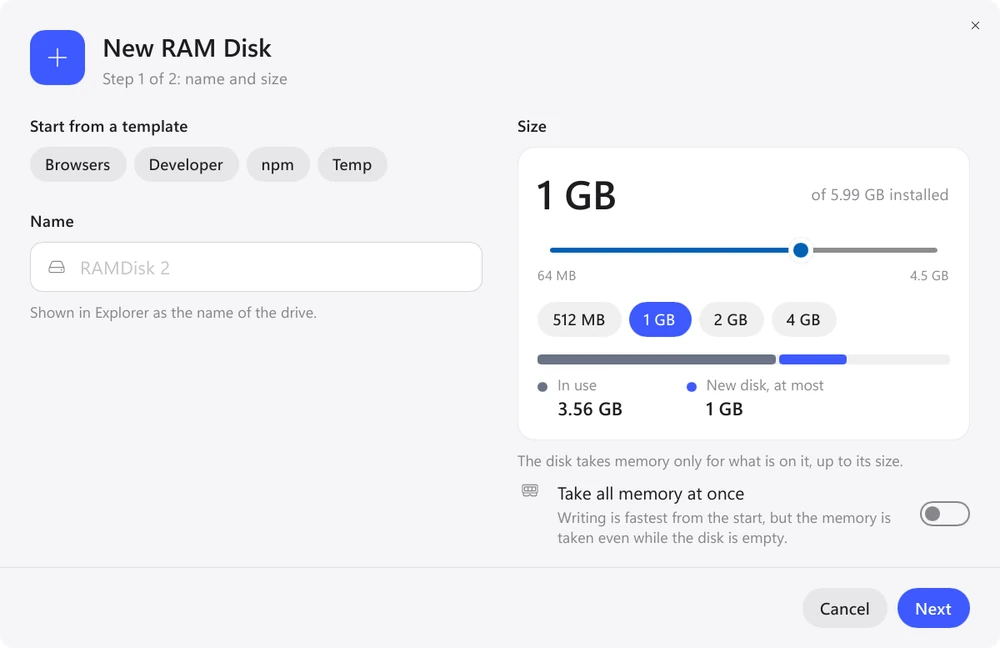
The template turns on “Create when Windows starts”, so the disk is there before the browser starts, and leaves “Keep files” off. A link stays in the old place, so the browser uses the same paths.
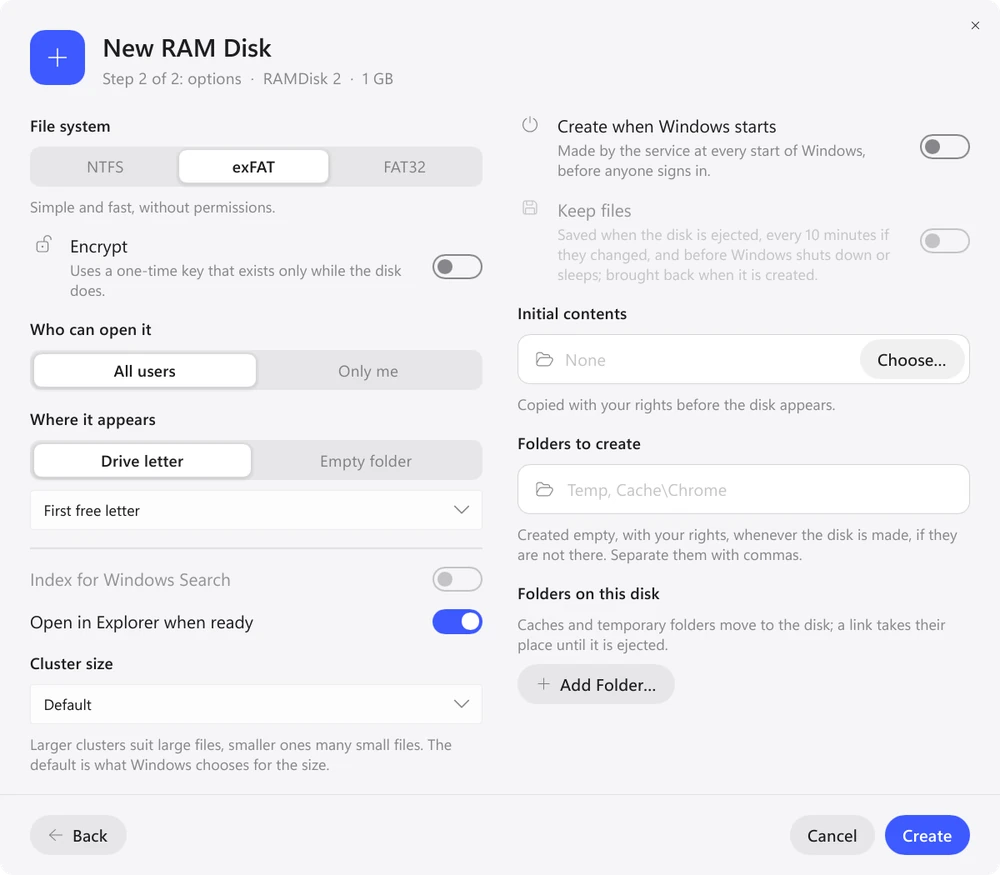
When the disk is ejected, the original cache folders come back, and after a sudden shutdown RamDisk returns them at the next start. More on moving folders.
Mac and Linux. The Browsers template is also on Linux. On a Mac there is no Browsers template, but RamDisk can move the Chrome cache. See RAM disk on a Mac.
Should you keep the cache between restarts?
Usually not. A browser cache fills up again within minutes of browsing, and saving it to the SSD would bring back the very writes you moved away. That is why the Browsers template doesn’t keep files. Package caches are a different story: see developer caches on a RAM disk.
Want to see the effect? After a day, “Usage History” in RamDisk shows how much memory each disk used, what size would have been enough and how many SSD writes were spared.
FAQ
Will I lose my passwords, history or open tabs?
No. Only the cache moves. The profile with history, cookies, passwords and settings stays on the SSD.
How big should the RAM disk be?
2 GB, the size of the Browsers template, is enough for most people. A RamDisk disk takes memory only for the files on it, so a half-empty 2 GB disk doesn’t hold 2 GB. On a computer with 8 GB of memory, keep it small.
Why won’t the cache folder move?
The browser is still running, sometimes in the background after you close its window. Quit it fully, for example from its tray icon, and try again. On Windows, RamDisk names the app that holds the folder.
Windows 10 and 11, macOS 15 and later, Ubuntu, Debian and Fedora. No registration and no trial period.
Free Download Features