Disk Utility has no “New RAM disk” button, but macOS can create one: two built-in Terminal commands, hdiutil and diskutil, make a disk in memory with one line. Below are the commands, the size math, how to eject the disk, what this way can’t do, and when an app is easier.
- 2 GB RAM disk:
diskutil erasevolume APFS RAMDisk $(hdiutil attach -nomount ram://4194304) - Size is given in 512-byte sectors: gigabytes × 2097152.
- Eject it in Finder or with
hdiutil detach: the files are gone, the memory is back. - After a restart the disk is gone too. Exlade RamDisk, a free app, brings it back with its files.
Create a RAM disk in Terminal
Open Terminal (Applications → Utilities) and run one line. This one creates a 2 GB disk named RAMDisk:
diskutil erasevolume APFS RAMDisk $(hdiutil attach -nomount ram://4194304)
hdiutil attach -nomount ram://4194304makes a block device in memory and prints its name, such as/dev/disk4.diskutil erasevolume APFS RAMDisk ...formats that device and mounts it as/Volumes/RAMDisk. It shows up in Finder like a USB stick.- For Mac OS Extended, write
HFS+instead ofAPFS. Both work for a temporary disk.
No sudo or administrator password is needed.
How many sectors
The number after ram:// counts 512-byte sectors, not megabytes. One gigabyte is 1024 × 1024 × 1024 / 512 = 2097152 sectors, one megabyte is 2048.
| Disk size | Sectors | What to write |
|---|---|---|
| 512 MB | 1048576 | ram://1048576 |
| 1 GB | 2097152 | ram://2097152 |
| 2 GB | 4194304 | ram://4194304 |
| 4 GB | 8388608 | ram://8388608 |
| 8 GB | 16777216 | ram://16777216 |
diskutil erasevolume erases whatever device you give it. Keep the $(...) form so it gets the RAM device from hdiutil, and never type a disk number by hand unless you checked it in diskutil list.
Which macOS: these commands have been in macOS for many years and still work in macOS 15 Sequoia and macOS 26 Tahoe, on Apple Silicon and Intel. The hdiutil manual page still has a ram:// example. APFS needs macOS 10.13 High Sierra or later; HFS+ works everywhere.
Eject the RAM disk
Click the eject button next to the disk in Finder, or run one of these with the device name that hdiutil printed:
hdiutil detach /dev/disk4
diskutil eject disk4
If you’ve lost the name, hdiutil info or diskutil list shows it again. Everything on the disk is deleted, and macOS gets the memory back.
What the Terminal way can’t do
- Built into macOS, nothing to install
- No administrator rights
- A disk for one session or one big build
- Gone after a restart, with all its files
- Fixed size: to change it, eject and create it again
- The memory comes back only when you eject the disk
- Not created at login unless you script it
- Caches such as DerivedData have to be moved by hand
To get the disk at every login, put the command in a shell script and start it with a LaunchAgent: a .plist file in ~/Library/LaunchAgents with RunAtLoad. The disk still comes back empty: saving and restoring files is up to your script.
The app way: Exlade RamDisk for Mac
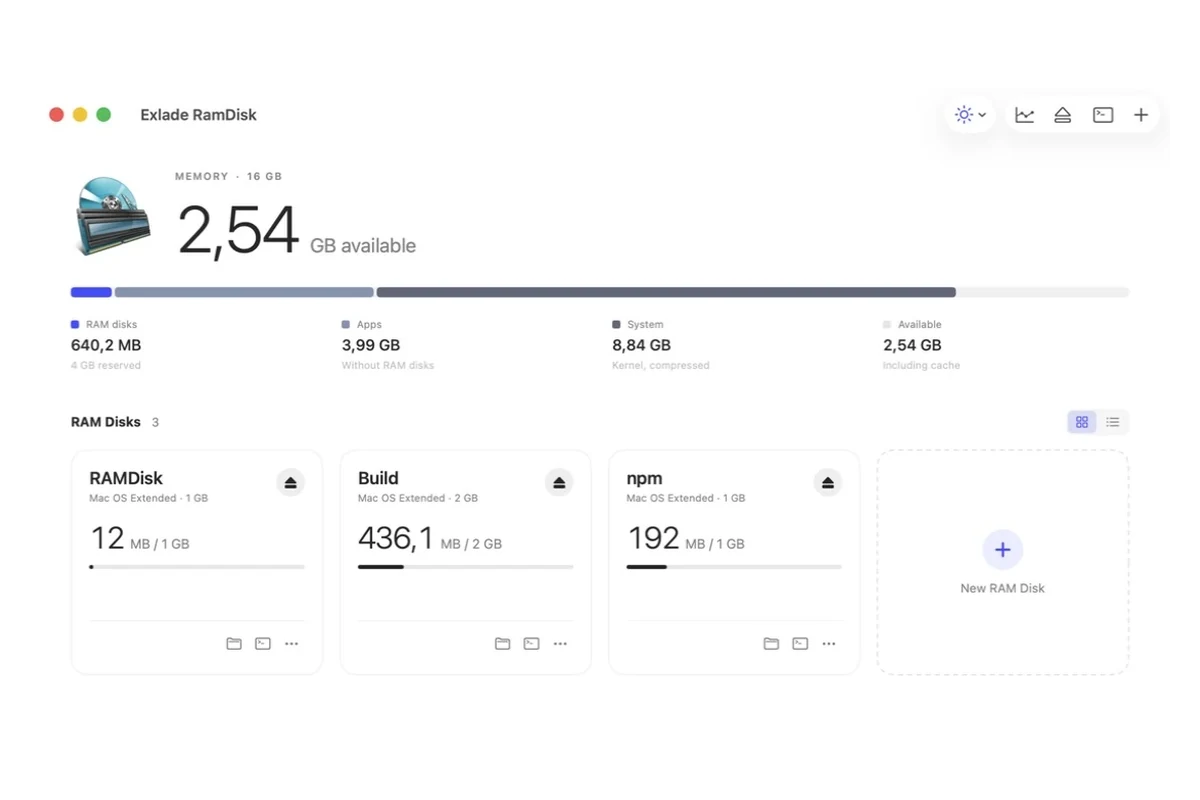
Exlade RamDisk is a free RAM disk app for macOS 15 and later, on Apple Silicon and Intel. It lives in the menu bar, needs no administrator rights and is free for home and work. It also runs on Windows and Linux: see the release post.
| Terminal | Exlade RamDisk | |
|---|---|---|
| After a restart | gone | created again, files kept if you want |
| Resize | eject and create again | any time, files stay |
| DerivedData, npm cache | move by hand | templates move them |
| Encryption | extra diskutil apfs commands | APFS encryption, random key |
| Low memory | you watch it yourself | saves files, offers to eject unused disks |
Download it from the download page and drag it to Applications, or install it with Homebrew together with the eramdisk tool:
brew install --cask exlade-ci/tap/exlade-ramdiskClick "New RAM Disk" and set a name and size, or pick a template: "Xcode" makes an 8 GB disk for DerivedData, "npm" a 2 GB disk for the npm cache. Swift Package Manager, CocoaPods, Homebrew and Chrome caches and TMPDIR can be moved too. Xcode and npm get the new location in their settings (restart Xcode), TMPDIR applies to apps started after that, and other folders are replaced by a link, so apps keep their paths.
Turn on "Create when RamDisk starts" and, if the files matter, "Keep files between launches": they are saved every 5, 10 or 30 minutes and before sleep. Then turn on "Open at login" in the settings.
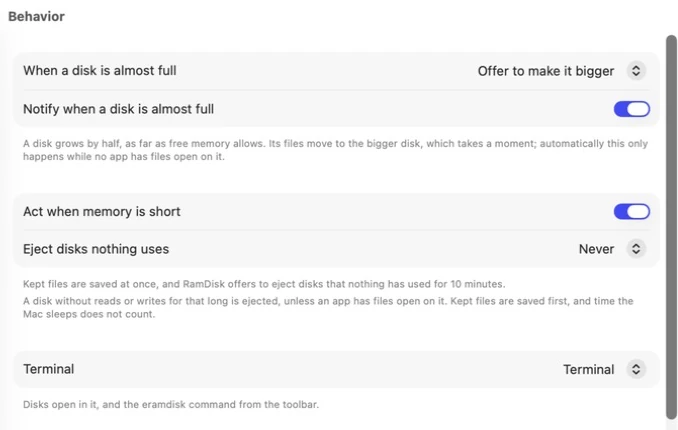
In Settings → Behavior, "Act when memory is short" saves kept files and offers to eject disks nothing has used for 10 minutes. A full disk can be made bigger.
For developers: what to put on the disk and how big to make it is in Xcode DerivedData, npm and other caches on a RAM disk.
FAQ
How do I make a RAM disk at startup on a Mac?
macOS doesn’t do it by itself. Either run the Terminal command from a LaunchAgent at login, or use an app: in Exlade RamDisk, turn on “Create when RamDisk starts” for the disk and “Open at login” in the settings.
How many sectors is 8 GB?
16777216: 8 × 1024 × 1024 × 1024 bytes divided by 512. For any size, multiply gigabytes by 2097152 or megabytes by 2048.
APFS or HFS+?
Both work. HFS+ (Mac OS Extended) is fine for a temporary disk. If you want an encrypted RAM disk, it has to be APFS: Exlade RamDisk always uses APFS for encrypted disks.
Does a RAM disk work on Apple Silicon?
Yes. The Terminal commands are the same on M-series and Intel Macs, and Exlade RamDisk is a universal app. Memory is shared with the GPU on Apple Silicon, so on an 8 GB Mac keep the disk small. How much memory to give a RAM disk.
Windows 10 and 11, macOS 15 and later, Ubuntu, Debian and Fedora. No registration and no trial period.
Free Download Features